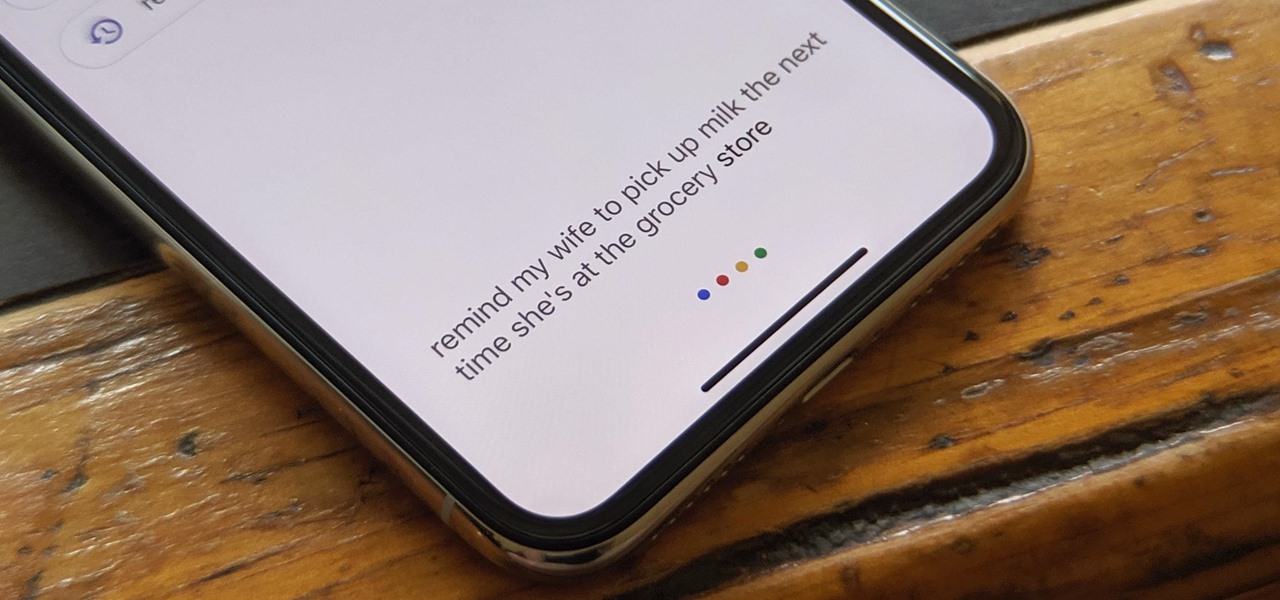
Where are reminders stored on my Google phone? The answer has changed: reminders you create with Google Assistant or Google Calendar are now stored as Google Tasks. This means your reminders are no longer a separate phone setting; they are managed and accessed through Google Assistant, Google Calendar, or the Google Tasks app.
How to find reminders on an Android phone
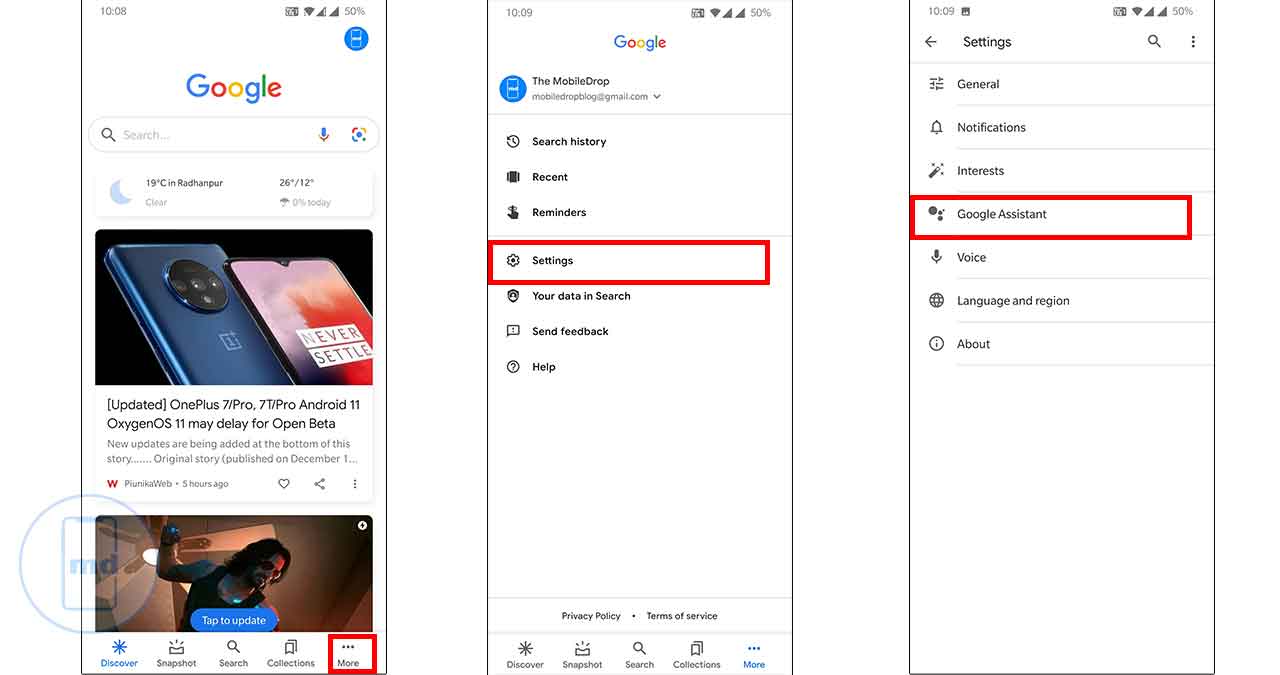
On an Android phone or tablet, the fastest way to see your reminders is through the Google app.
- Open the Google app.
- Tap your Profile picture or initial in the top right.
- Tap Reminders.
You can also use a voice command. Say, “Hey Google, open Assistant settings.” Then go to All settings > Reminders to view or manage them. Reminders may also be managed in Google Keep or a built-in Reminders app, depending on your device and setup.
How to find reminders on an iPhone or iPad
On an iPhone or iPad, you need the Google Assistant app installed.
- Open the Google Assistant app.
- Tap your Profile picture or initial.
- Under All settings, tap Reminders.
Google also documents the path Profile picture or initial > Reminders at the top right in the Assistant app flow. To receive notifications for these reminders, you must install either the Google Calendar app or the Google Tasks app.
Accessing reminders through Google Calendar and Google Tasks
Google Assistant and Calendar reminders have become Google Tasks. You can view and edit your tasks with Google Assistant, Google Calendar, or Google Tasks. In Google Calendar, reminders now route through Google Tasks, so opening the Calendar app and tapping the Menu icon > Reminders will show your tasks alongside events. On iPhone or iPad, you need the Google Calendar or Google Tasks app installed to receive notifications for these migrated reminders. Managing your phone data and storage management is simpler when reminders are centralized in Tasks rather than scattered across separate system settings.
Using Google Assistant to manage reminders
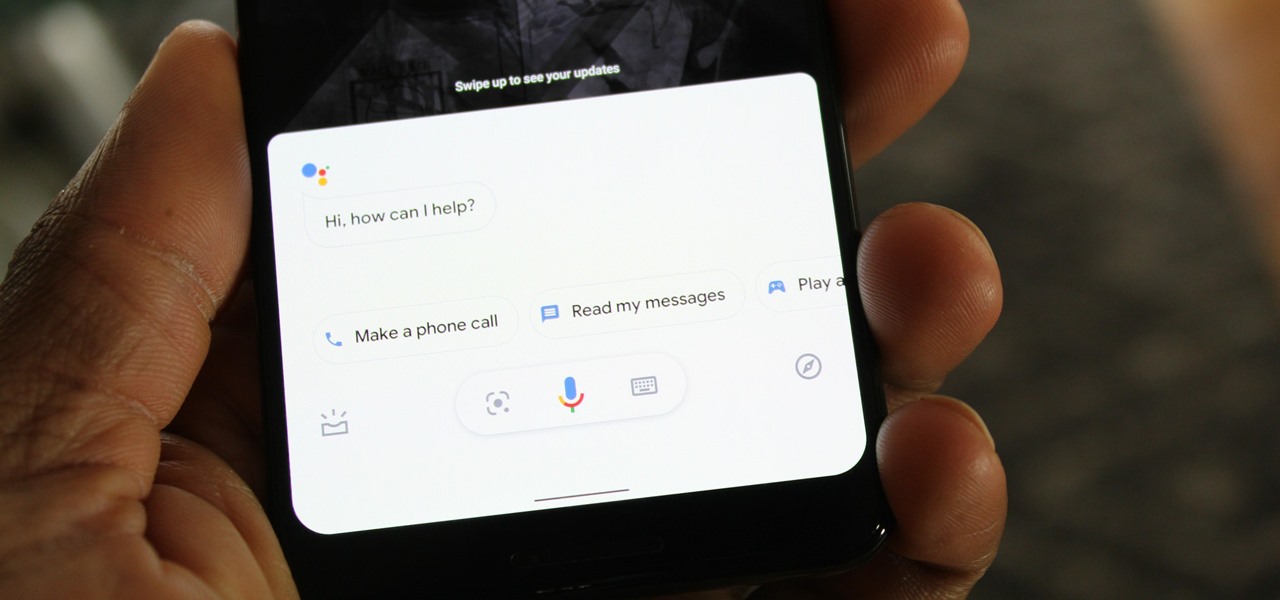
Google Assistant makes managing reminders hands-free. On Android, say “Hey Google, open Assistant settings” and then tap All settings > Reminders. On iPhone or iPad, open the Google Assistant app, tap your profile picture or initial, then tap Reminders under All settings. You can create new reminders by saying something like "Hey Google, remind me to call the dentist tomorrow at 9 AM." Reminders can still be received on Google Assistant devices.
Frequently Asked Questions
Will my reminders sync across all my devices?
Yes. Because reminders are now Google Tasks, they sync automatically to any device signed into the same Google account, including Android phones, iPhones, iPads, and computers.
Why am I not getting notifications for my reminders?
On iPhone or iPad, you must install the Google Calendar or Google Tasks app and enable notifications for them. On Android, ensure the Google app and Google Calendar have notification permissions enabled in your system settings.
Can I set recurring reminders?
Yes. When creating a reminder in Google Tasks, Google Calendar, or via Google Assistant, you can choose repeat options such as daily, weekly, or monthly.
How can I set up recurring reminders on my Google phone?
Open Google Calendar, create a new reminder, and select the repeat option to set it as daily, weekly, monthly, or a custom frequency.
Are my reminders backed up to my Google account?
Yes. Since reminders are stored as Google Tasks, they are backed up to your Google account and will be restored when you sign in on a new device.
Is there a limit to how many reminders I can have?
For the exact current limit, check Google's official Tasks documentation.
For the wider topic, see phone data and storage management.
Related reading: How To Activate Hey Google On My Phone, How To Save Hidden Pictures On Google Phone, and How To Use Google Assistant On Android.