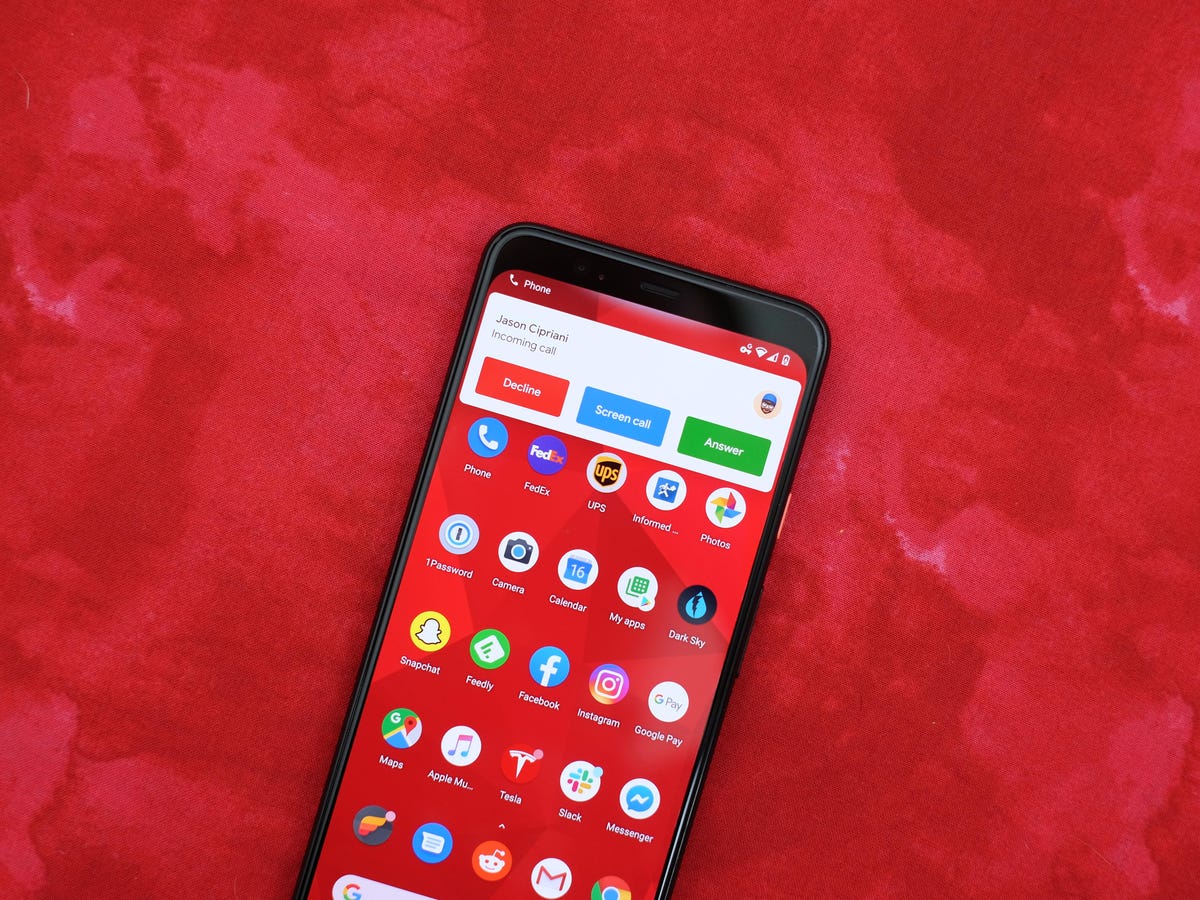
To answer an incoming call on an Android phone, swipe the green answer button across the screen. This is the primary, universal method for answering calls on almost all Android devices.
How to answer an incoming call on an Android phone with a screen swipe
When a call comes in, your screen displays the caller's information along with a green phone icon. To answer, swipe your finger from left to right across that icon. The screen slides, and the call connects. While this is the standard gesture, the exact appearance of the button may vary slightly depending on your phone manufacturer's custom interface or Android version.
How to answer a call with Google Assistant voice commands
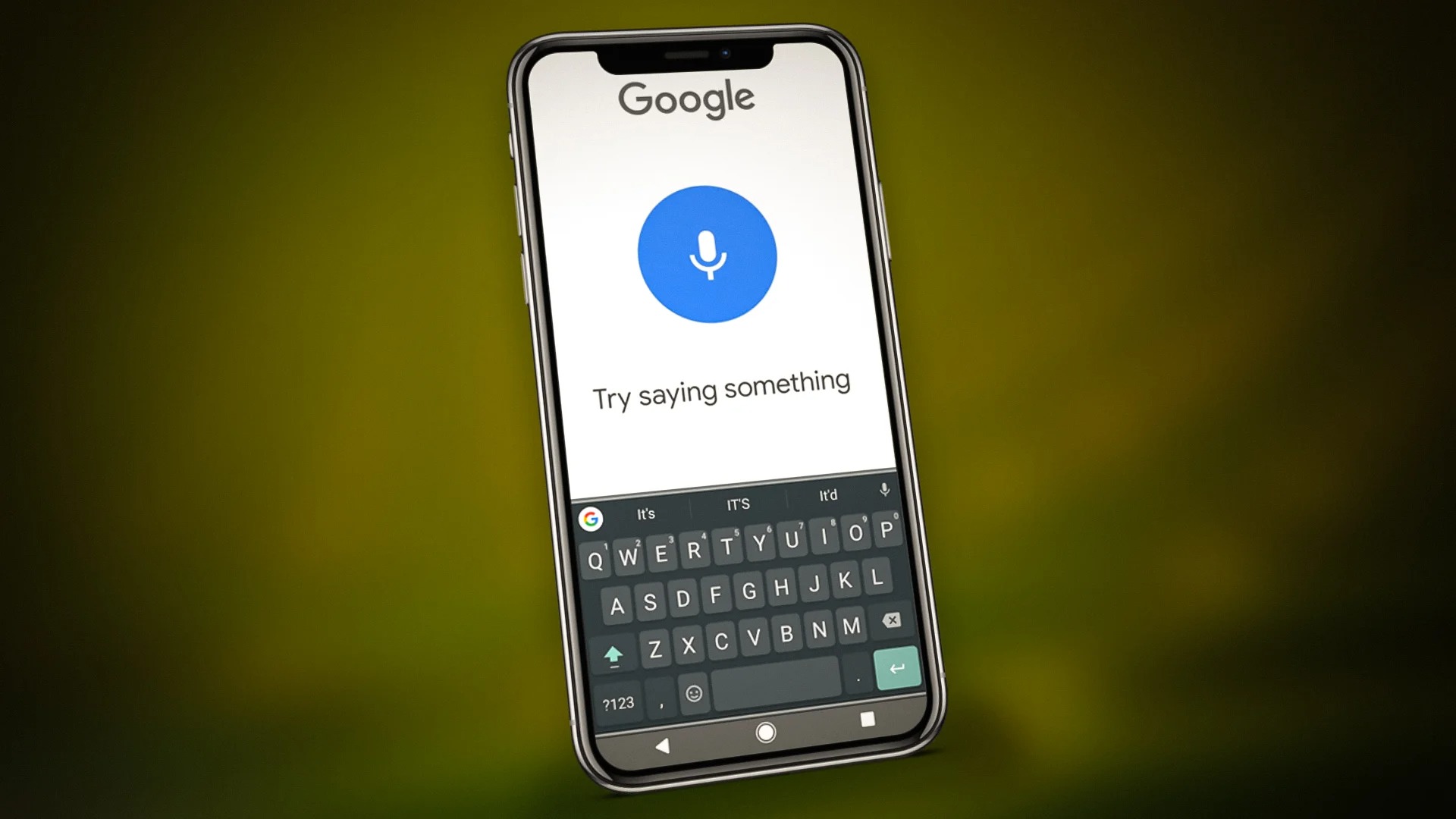
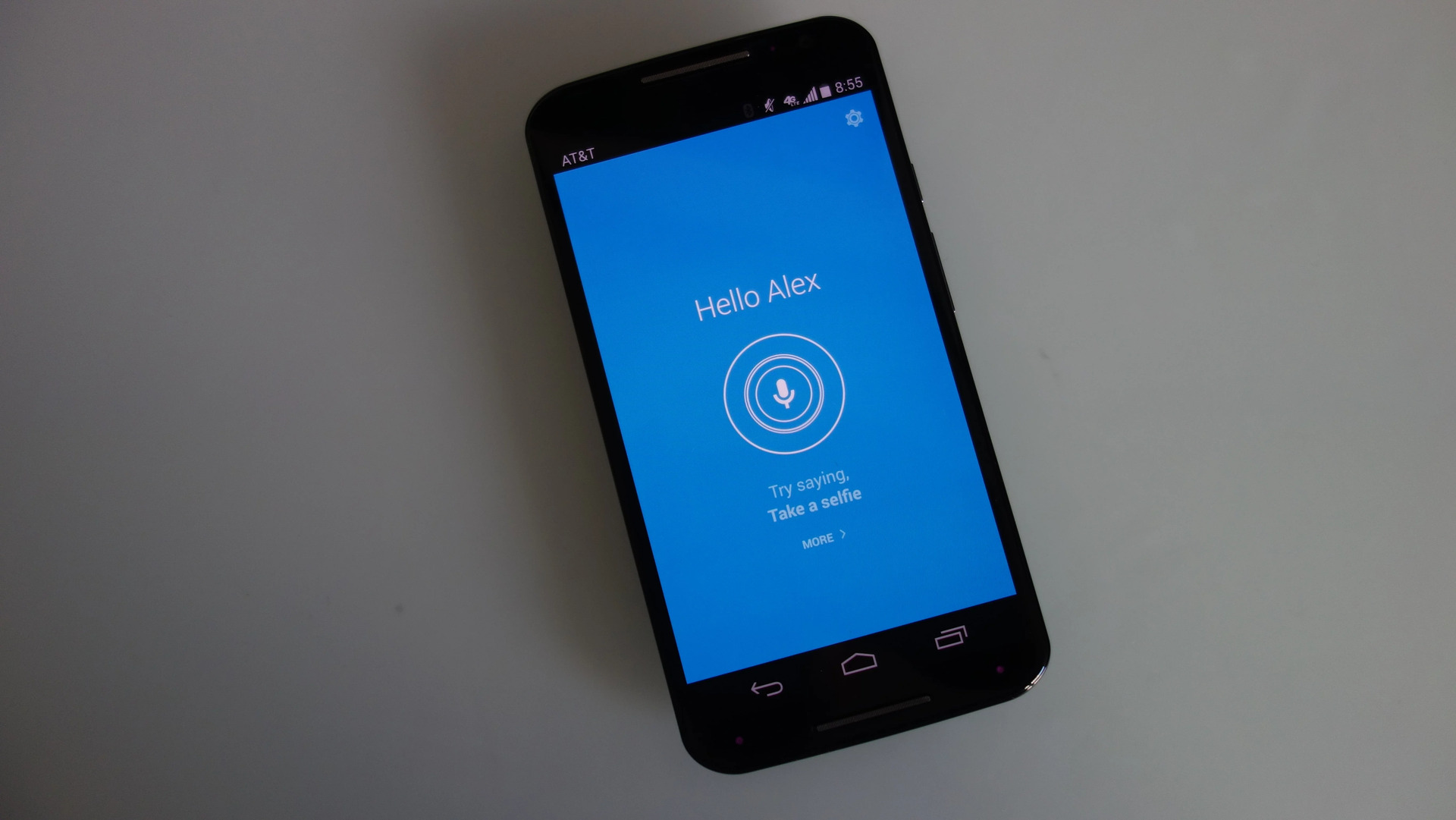
On supported devices, you can answer hands-free using your voice. This feature is available on Pixel 4 and later, including Pixel Fold. When a call arrives, simply say "Answer" to accept it or "Decline" to reject it. This method is especially useful when your hands are occupied.
How to answer a call using TalkBack accessibility gestures
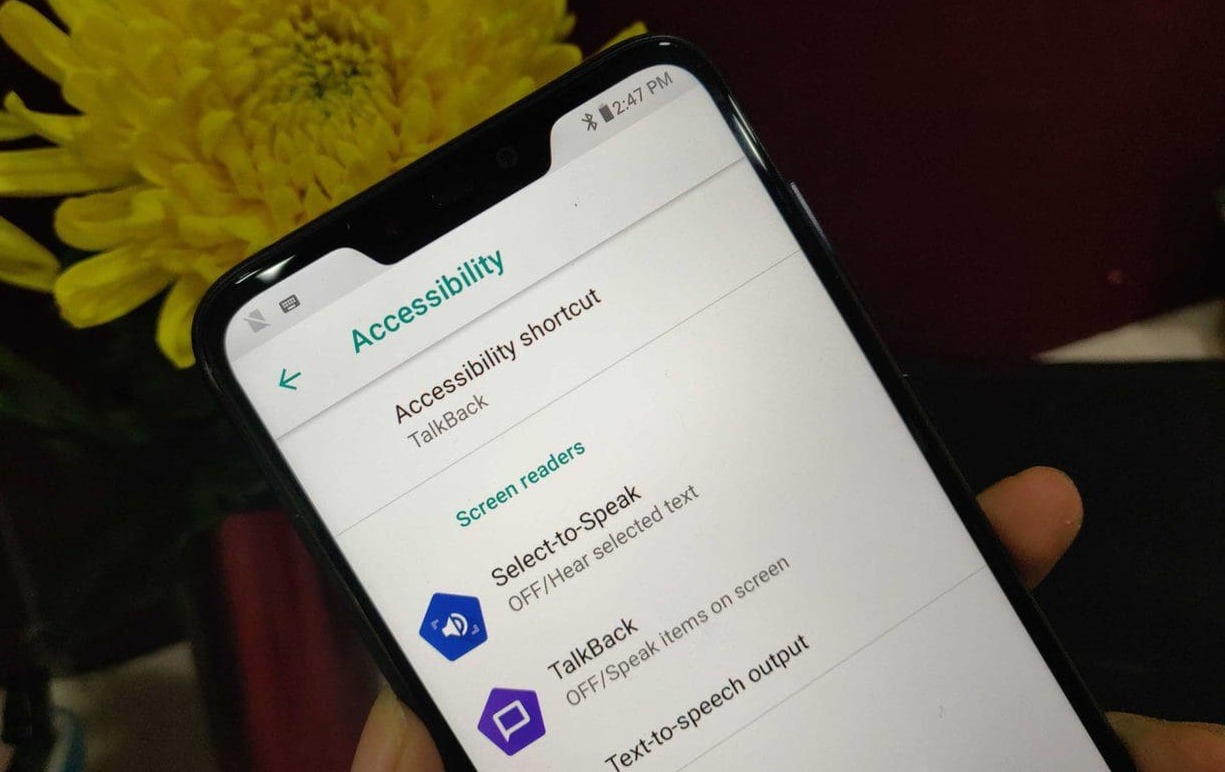
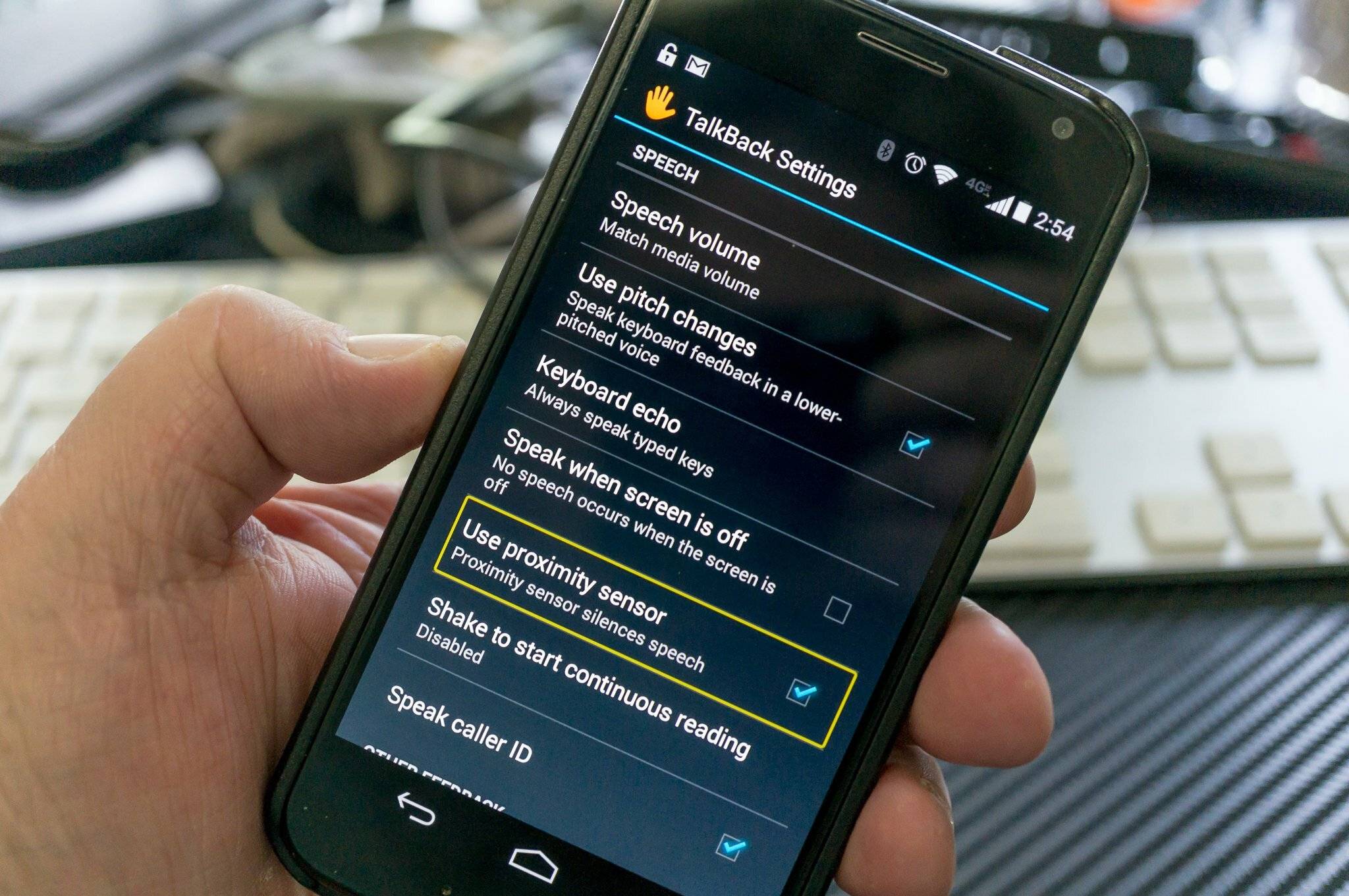
For users who rely on TalkBack, Android's screen reader, two documented gestures answer incoming calls. The primary method is a two-finger swipe up. On devices that support multi-finger gestures, a two-finger double tap can also answer or hang up a call. These gestures provide an accessible way to handle calls without needing to locate a specific on-screen button.
How answering calls on Android compares to iPhone
If you are switching from an iPhone, the process differs. On an iPhone, you tap Accept to answer a call when the device is unlocked. If the iPhone is locked, you drag the slider. Apple also supports pressing the side button or either volume button to handle an incoming call. For FaceTime calls, tap the call button to answer, or drag the slider right if one appears. On older iPhone models, pressing the center button on EarPods also answers the call. Android's swipe method is the closest equivalent, but physical button answers are not universally documented for standard Android phones.
Method 2: Answering a Call Using Physical Buttons - Press either the volume up or power button once to answer the call.
Frequently Asked Questions
Can I customize how I answer calls on my Android phone?
Some Android phones allow you to adjust call-answering behavior in the Phone app settings, such as enabling "Press power button to end calls" or "Answer calls by pressing the volume up button." However, these options vary by manufacturer and Android version, so check your device's settings under the Phone app or Accessibility menu.
How do I reject an incoming call and send a quick message instead?
When a call comes in, swipe up from the green answer button to see options like "Send a message." Android includes pre-set quick decline messages (e.g., "Can't talk right now") that you can customize in the Phone app settings under "Quick responses."
What should I do if I cannot answer calls on my Android phone?
If you are unable to answer calls, check that your screen is responsive and not cracked or unresponsive. You can also set up call forwarding to redirect incoming calls to another number. To forward a cell phone, go to your Phone app settings, find "Call forwarding," and enter the number where calls should be sent. This ensures you do not miss important calls even if your device has an issue.
Can I answer a call without touching the screen?
Yes, if you have a supported Pixel device, you can use Google Assistant voice commands like "Answer." For other Android phones, some models offer "Answer by pressing the volume up button" as an accessibility option, but this is not universal. Check your device's Accessibility settings for "Answering and ending calls."
How do I answer a call when my Android phone is locked?
When your phone is locked, the incoming call screen still appears with the swipe gesture. Simply swipe the green answer button as you would when the phone is unlocked. The phone will unlock and connect the call automatically.
Additional Features and Tips for Managing Incoming Calls on Android
Call Screening feature allows you to see an incoming call as it comes in and choose to answer, send a message, or mark as spam.
Do Not Disturb Mode silences all incoming calls and notifications except for specific contacts or call priority settings.
Customizable Ringtones for individual contacts or groups.
Call Recording functionality, built-in on some Android phones or via third-party apps.
Contact Syncing across devices ensures the same contact list on all your Android devices.
Related reading: How To Stop Android Phone From Talking.