Fix voice assistant settings when it won't listen
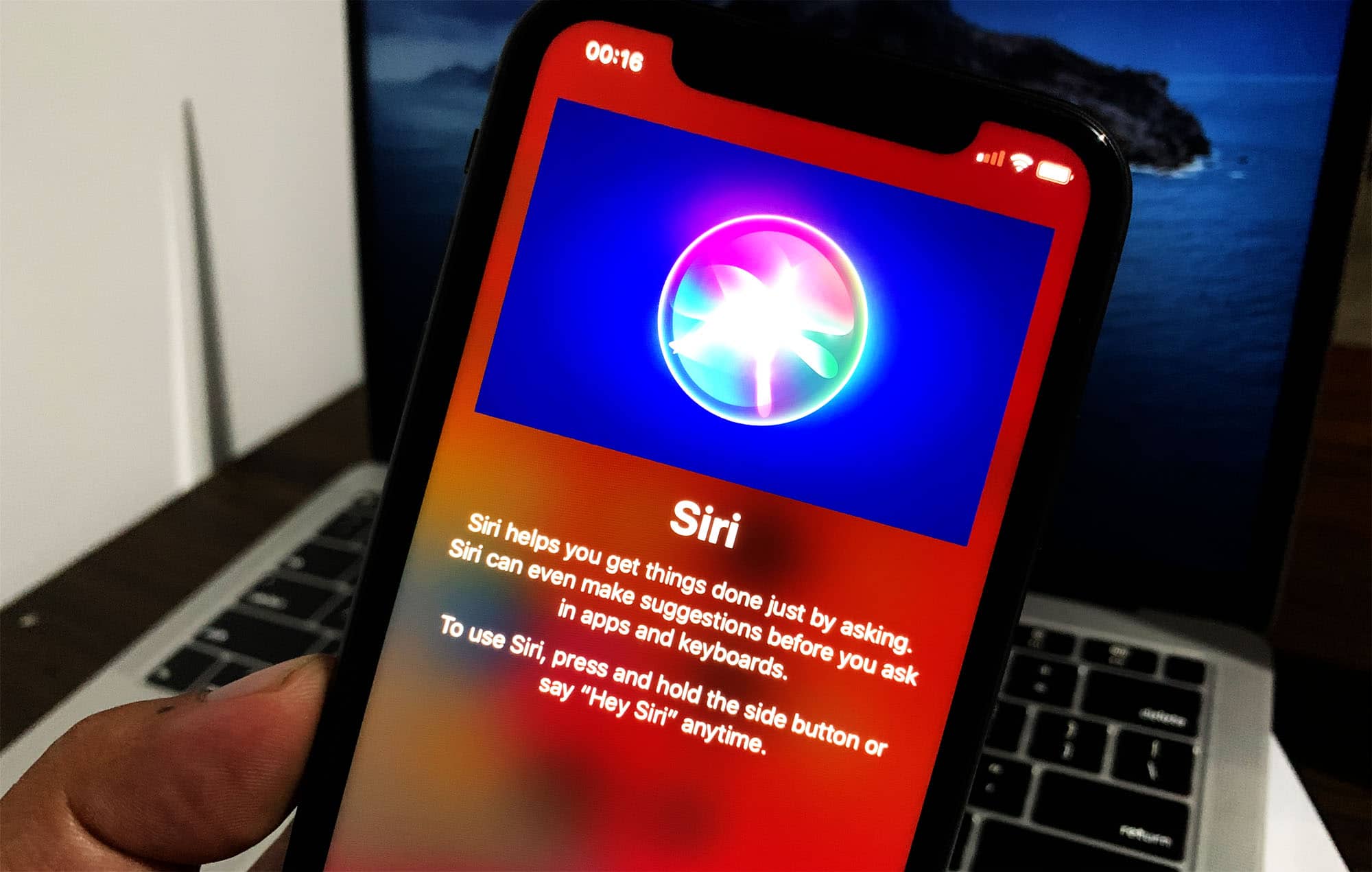
When your phone ignores “Hey Siri” or “OK Google,” the first place to check is your voice assistant settings. On an iPhone, open Settings > Siri & Search, or on newer devices go to Settings > Apple Intelligence & Siri, and confirm that Siri or Hey Siri is enabled. If the switch is already green, turn it off, wait a moment, and turn it back on. When the setup screen appears, tap Continue and re-train Siri to recognize your voice by following the on-screen prompts, which resolves many cases where the helper seems to ignore you.
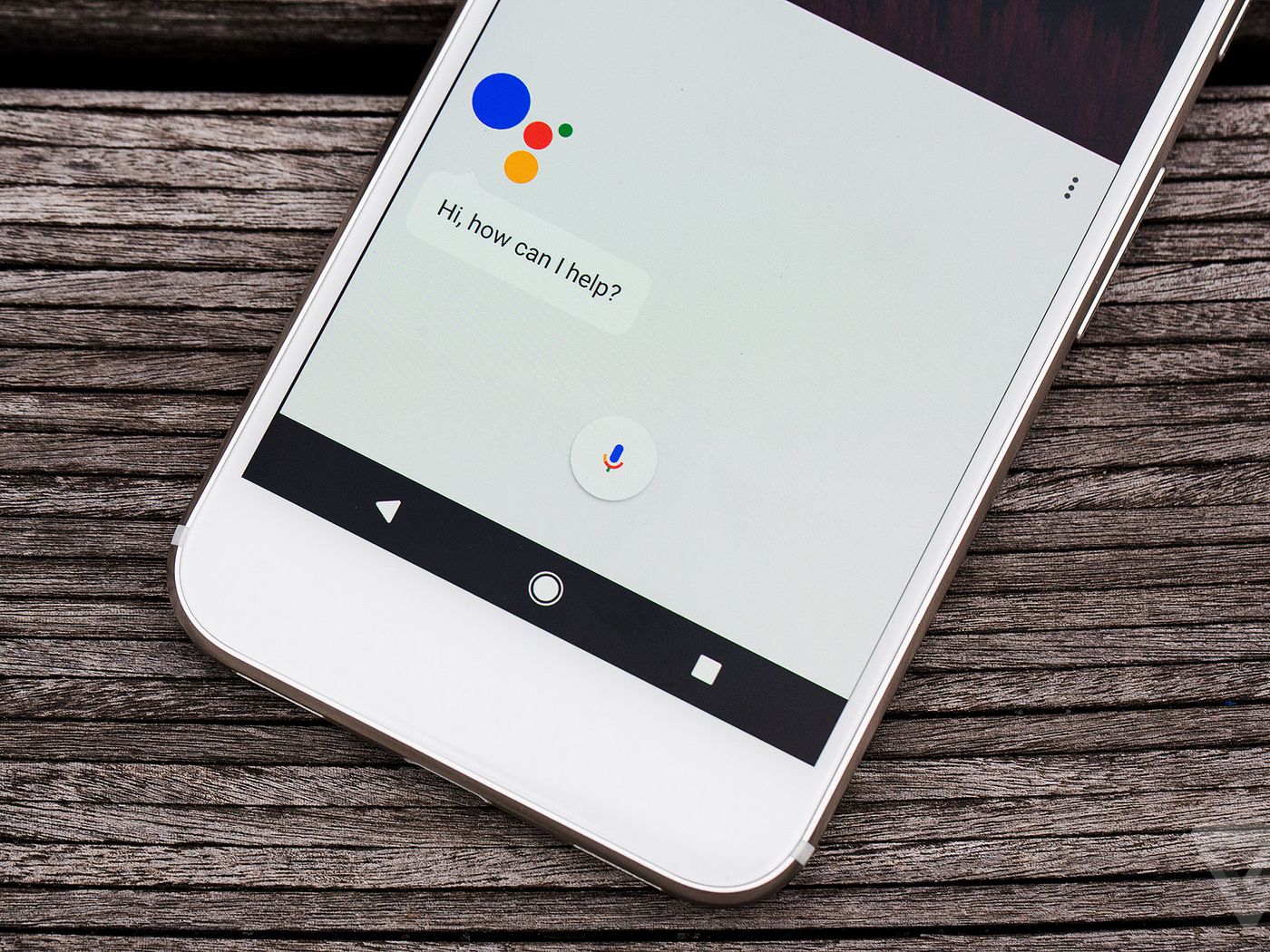
On Android, the settings live in a different drawer, which is why people often reach for the wrong control. To fix your voice assistant, open the Google Home app and go to your account settings, then navigate to Voice Match and turn off Hey Google, then turn it back on. If you meant to silence spoken responses, you can turn off Google assistant voice on Android from the same Assistant settings menu. The distinction matters because many users confuse the main helper with an accessibility screen reader, so when they try to turn off voice assistant on Android they may accidentally disable other accessibility features instead, leaving the phone still narrating every tap while Google Assistant continues to ignore their commands.
Stop the phone from reading everything aloud
That persistent voice narrating every tap and label is not your main helper misbehaving, it is a separate support layer called a screen reader. On an iPhone, open Settings, go to Accessibility, then VoiceOver, and switch the toggle off. If you previously set up the Accessibility Shortcut, a triple-click of the side button can also silence it. On many Android phones, you can press and hold both volume keys for a few seconds to turn off TalkBack, though this shortcut may need to be enabled in TalkBack settings first. You can also simply say “Hey Google, turn off TalkBack.” If you need a dedicated walkthrough, you can read how to turn off talkback on an Android phone to see the exact steps for your model. Samsung devices sometimes label this feature differently. To disable voice talk on a Samsung Galaxy a tablet you would look under Settings, then Accessibility, where the exact name depends on your software version. The confusion between these tools and the main helper is exactly why many attempts to stop Android phone from talking fail. People toggle the general aide off while the screen reader remains active, continuing to announce every item on the display. The settings live in completely different places. Recognizing which one is actually speaking saves you from disabling the feature you meant to keep. The specific steps for turning off these narration features vary slightly by manufacturer and platform version. For example, if you have a Motorola device, you may want to read how to turn off voice on Motorola phone to locate that specific setting. Similarly, if you find that captions are appearing on screen instead of spoken feedback, you can look up how to turn off closed caption on Android phone to resolve that issue. The following guides walk through the process for several common device families.
Manage microphone and speech-to-text
When your words appear on screen as text instead of spoken commands, you are dealing with dictation settings, not the main helper. On an iPhone, the microphone button on the keyboard starts and stops this feature. If you want to turn off talk to text on iPhone, the control lives in the Keyboard settings, and flipping that switch removes the keyboard microphone so your phone stops converting speech to written words. This is a completely different function from Siri listening for “Hey Siri.”
If you need to turn off microphone on iPhone for privacy reasons across all apps, iOS handles this through per-app permissions rather than a single master kill switch. You can review which apps have access in the Privacy & Security section of Settings and revoke access individually. For those searching specifically how to turn off microphone on iPhone 13, the privacy menu in Settings applies, as Apple keeps this control consistent across recent models.
On the Google-powered side, dictation behaves differently depending on your keyboard app. When you want to use talk to text on Samsung S20, you may tap the microphone icon on the Samsung Keyboard or Gboard while a text field is active, and the device then converts your speech directly into the message body. If the icon is missing, check that voice input is enabled in your keyboard settings, which Samsung’s interface sometimes nests under Manage Keyboards rather than the main Settings app. Unlike the screen reader confusion covered earlier, this is purely about transcribing your voice into text fields, and leaving it active does not make your phone narrate everything you touch.
Adjust calls, chat, and Bluetooth audio
During a call, persistent typing sounds or on-screen text you never asked for often trace back to real-time text features. You can take RTT off your phone through the accessibility menu rather than the call screen itself. On an iPhone, the switch lives under Settings, then Accessibility, then RTT/TTY. Turning off both Software and Hardware TTY stops the phone from sending text as you talk.
If you need to remove RTT from Android phone, the documented path is in Google Messages rather than the Phone app. In messaging, the culprit behind strange delivery notifications or chats that refuse to send as plain text is often the advanced messaging standard. You can disable RCS on Android by opening Google Messages, tapping your profile icon, choosing Messages settings, then RCS chats, and toggling the feature off.
For gamers who suddenly cannot type freely, you may need to turn off quick chat in Among Us Mobile. This may depend on requirements the game enforces for that option. When your audio keeps routing to a forgotten device, you can turn off discoverable Bluetooth on iPhone.
Change accessibility shortcuts and alerts
When your phone speaks every time you connect a charger or headphones, you are likely dealing with a Spoken Content rule rather than the main screen reader. On an iPhone, open Settings > Accessibility > Spoken Content to check whether Speak Screen or Speak Selection is active, as these features can make my phone talk when I plug it in without VoiceOver ever being turned on. If the narration includes hints about what you are touching, go to Settings > Accessibility > VoiceOver > Verbosity and dial back the extra feedback there. Users searching for a quick way to disable emergency call on Android should know that the shortcut is often tied to the power-button gesture or lock-screen safety settings, though the exact toggle varies across Samsung, Pixel, and other manufacturer skins. The persistent speech may also come from a reading app you installed and forgot about, and if you are looking for alternatives, the 15 best text to speech readers you can use for free all include their own independent playback controls that can trigger spoken output even when the system’s built-in screen reader is off.
- 15 best text to speech readers you can use for free
- make my phone talk when I plug it in
- disable emergency call on Android
Frequently Asked Questions
Why does Siri not respond on my Apple Watch even after re-training on my iPhone?
Siri voice recognition settings are separate per device. On your Apple Watch, open Settings then Siri and confirm Listen for "Hey Siri" is enabled. The watch also requires a working internet connection and an unblocked microphone, and voice download may be needed on Apple Watch Series 3 or later while on Wi‑Fi and charging.
How do I stop Google Assistant from speaking responses out loud on Android?
Open the Google app, tap your profile icon, then go to Settings, Google Assistant, and select Assistant voice and speech output. Change the speech output setting to Hands-free only or Silent depending on your preference. This controls spoken replies without disabling the assistant itself.
Can I turn off the microphone for specific apps without disabling dictation on iPhone?
Yes. Go to Settings, then Privacy & Security, and tap Microphone. You will see a list of apps that have requested microphone access, and you can revoke permission individually by toggling each app off. This does not affect the keyboard dictation microphone controlled in Keyboard settings.
How do I enable the volume key shortcut to turn off TalkBack on my Samsung phone?
Open Settings with a two-finger swipe, go to Accessibility, then TalkBack or Screen reader depending on your model, and tap Settings. Look for an option labeled Accessibility shortcut or Volume key shortcut and turn it on. After that, pressing and holding both volume keys for a few seconds will toggle TalkBack or Voice Assistant off and on.
Why does my phone speak when I plug in headphones even though VoiceOver is off?
This is caused by Spoken Content settings, not the main screen reader. On iPhone, open Settings, go to Accessibility, then Spoken Content, and check whether Speak Screen or Speak Selection is active. Turning those off stops the narration triggered by connecting accessories.
How do I remove RTT from my Android phone during calls?
On Android, RTT settings are typically found in the Phone app rather than system Accessibility settings. Open the Phone app, tap the three-dot menu, go to Settings, then Accessibility, and look for Real-time text or RTT to turn it off. The exact path varies by manufacturer and Phone app version.