Here’s how to connect a Wii to an Xfinity WiFi hotspot, though the console is not officially supported and the captive portal login page may not load correctly on its built‑in browser. The steps below explain how to attempt the connection and what to do if it fails.
Can you connect a Wii to an Xfinity Wi‑Fi hotspot?
Xfinity does not list the Wii as a supported device for its public hotspot network, and the browser‑based sign‑in required by the xfinitywifi network often blocks older consoles. However, you can try the connection process described here. If the direct connection does not work, workarounds using a phone or travel router may still get your Wii online.
What you need before you start
You will need an active Xfinity account or a subscription that includes hotspot access, a Wii console with working Wi‑Fi hardware, and an understanding that the xfinitywifi network requires you to sign in through a web browser.
Step 1: Set up the Wii console
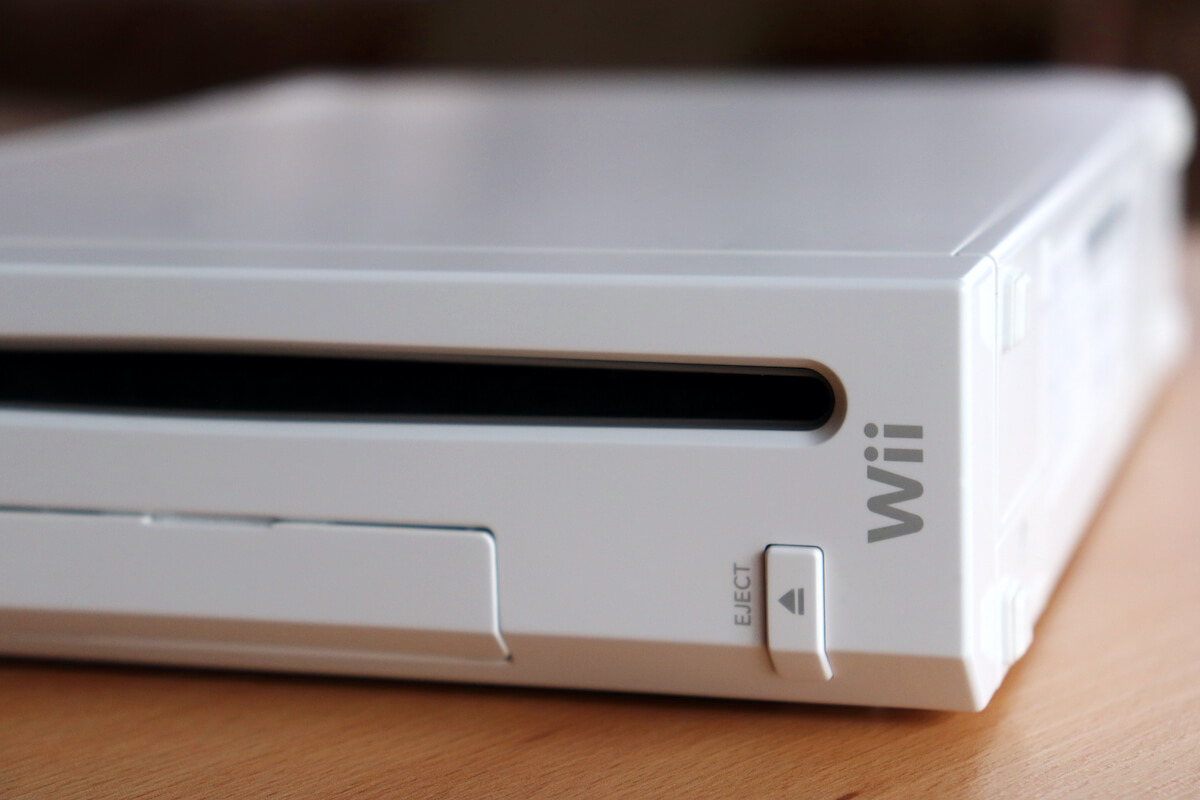
- Power on the Wii by pressing the power button on the front of the console.
- Connect the Wii to your TV using the included AV cables or an HDMI adapter.
- Sync a Wii Remote by opening the battery cover, pressing the red sync button, then pressing the red sync button inside the small door on the front of the console.
Step 2: Find and select the xfinitywifi network
- From the Wii Menu, select the Wii button in the bottom‑left corner, then choose Wii Settings.
- Navigate to the Internet section and select Connection Settings.
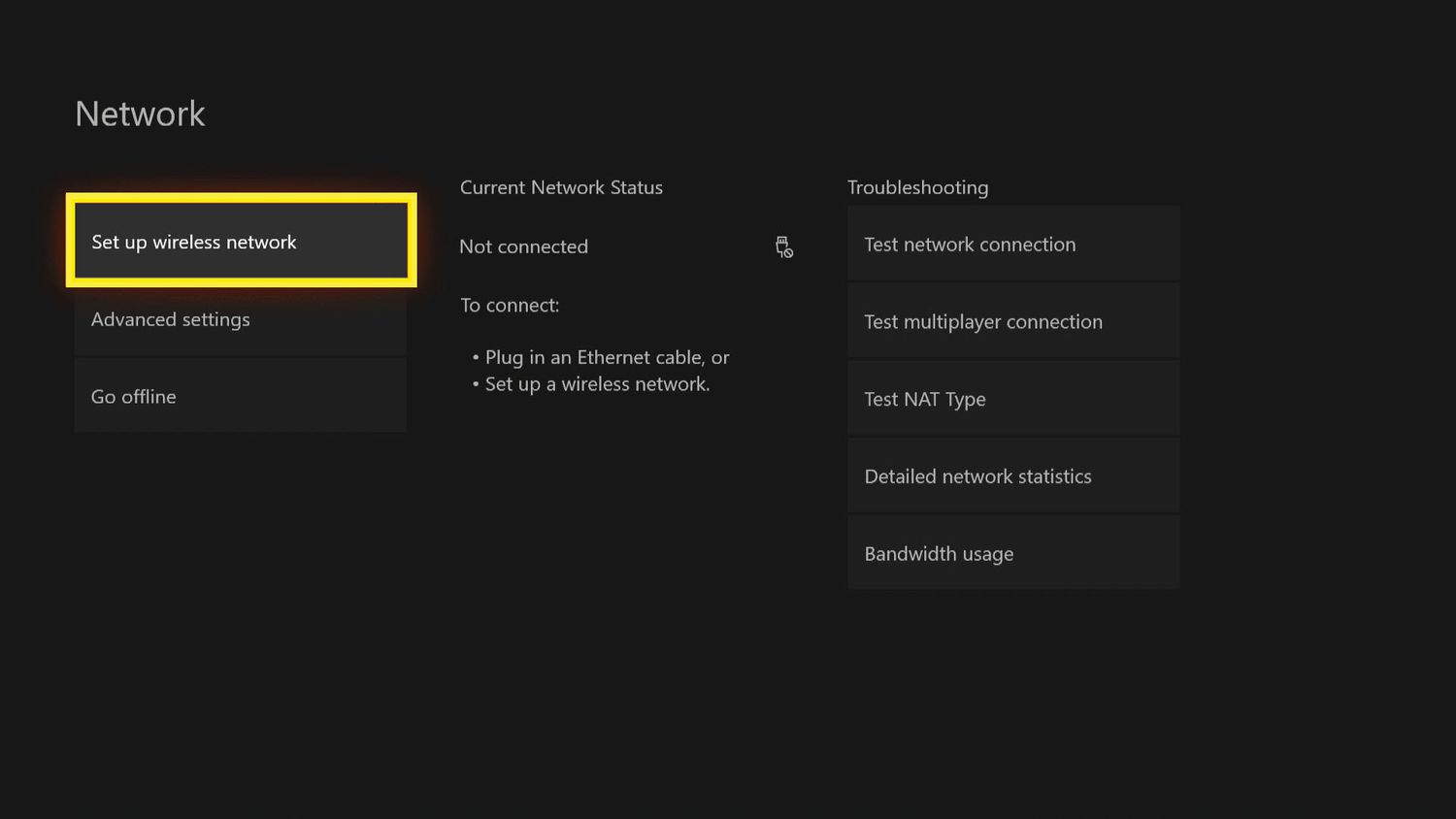
- Choose an available connection slot and select Wireless Connection.
- Select Search for an Access Point. The Wii will scan for nearby Wi‑Fi networks.
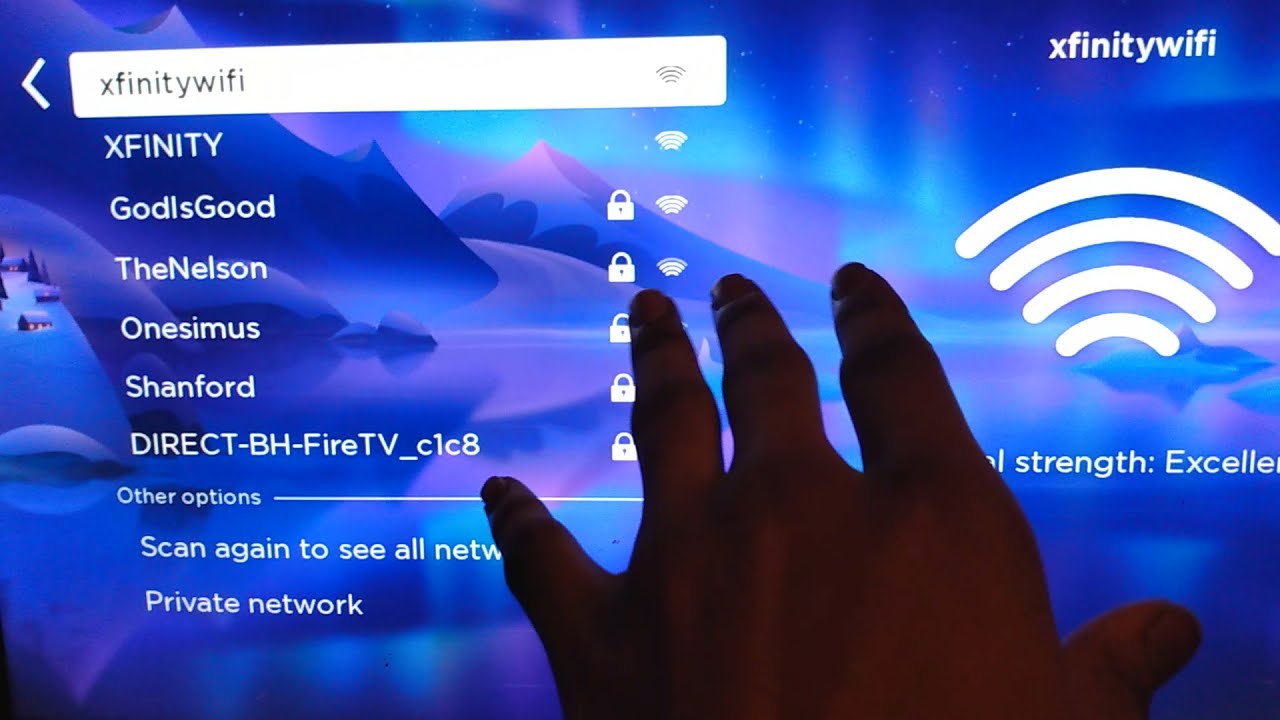
- From the list, select the network named xfinitywifi, this is the exact hotspot name used by Xfinity.
- Confirm your selection and save the connection settings.
Step 3: Attempt the browser sign‑in on the Wii
- Try to navigate to any website. The Xfinity captive portal should appear automatically. If it does not, enter an HTTP site address (for example, a site that begins with http:// rather than https://) to trigger the portal.
- Follow the on‑screen prompts to sign in with your Xfinity account credentials.
- Once signed in, return to the Wii Menu and run a connection test to confirm the console is online.
What to do if the Wii won’t connect
If the captive portal does not load or the Wii cannot complete the sign‑in, try these workarounds:
- Use a phone or laptop as a bridge: Connect your phone or laptop to the xfinitywifi hotspot and sign in there. Then turn on that device’s personal hotspot feature and connect the Wii to the hotspot network. On an iPhone, go to Settings > Personal Hotspot and turn on Allow Others to Join. Apple says you can change the hotspot password by tapping Wi‑Fi Password, and the password must be at least eight characters long. Apple’s Personal Hotspot support page says the hotspot requires an iPhone or iPad (Wi‑Fi + Cellular) with an activated carrier plan that includes Personal Hotspot service. Apple says Instant Hotspot works for other iOS devices running iOS 8 or later and Mac computers running OS X 10.10 or later signed in to iCloud with the same Apple ID. On Android, swipe down from the top of the screen, tap Hotspot, and set a password. Google says if the Hotspot quick setting is missing, tap Edit in Quick Settings and drag Hotspot into Quick Settings. Google documents cross-device sharing in Settings > Google > All services > Devices & sharing > Cross-device services, and under Internet sharing, confirm Use internet sharing is on, and that Instant hotspot and Automatically share Wi‑Fi can also be turned on there. The Wii can then find and join the phone’s hotspot.
- Use a travel router: Connect a travel router to the xfinitywifi network, complete the sign‑in on a computer or phone, and then have the Wii connect to the travel router’s own Wi‑Fi network.
- Check signal strength: Move the Wii closer to the hotspot source. Walls and distance can weaken the signal.
- Restart the console: Power off the Wii, unplug it for a few seconds, then plug it back in and try again.
Note that Xfinity’s hotspot feature is not available on all Xfinity Wireless Gateways or all Xfinity Internet products. The supported device list includes Apple iOS 17.1 or later, Android 11.0 or later, macOS 10.7 or later, and Windows 10 or later, the Wii’s older software may simply be incompatible.
Frequently Asked Questions
Can I play online multiplayer games on the Wii using an Xfinity hotspot?
If the Wii successfully connects and stays signed in, online multiplayer may work for games that still have active servers. However, the connection may be unstable due to the Wii’s older Wi‑Fi hardware and the public nature of the hotspot.
Do I need a password to connect to the xfinitywifi network?
No. The xfinitywifi network is unencrypted, so no Wi‑Fi password is required.
Why does the Wii fail the connection test even after I see the network?
The Wii may detect the network but fail the test because it cannot load the captive portal or because the hotspot requires a newer security protocol the Wii does not support. The workarounds listed above, using a phone hotspot or travel router, often resolve this.
Does Xfinity support the Wii in any official way?
No. Xfinity’s help pages do not list the Wii as a supported device, and no Wii‑specific setup steps are documented. Any connection is attempted at the user’s discretion and may not work reliably.
For the wider topic, see Xfinity Mobile services and settings.
Related reading: How To Connect Roku TV To Xfinity Hotspot and How To Connect Xbox Series X To Xfinity Wi-Fi Hotspot.