To clear cookies on Android, open Chrome and go to Settings > Privacy and security > Delete browsing data, then check Cookies and site data and tap Delete data. This quick process fixes website loading problems, logs you out of sites, and protects your privacy.
How to clear cookies on Android in Google Chrome
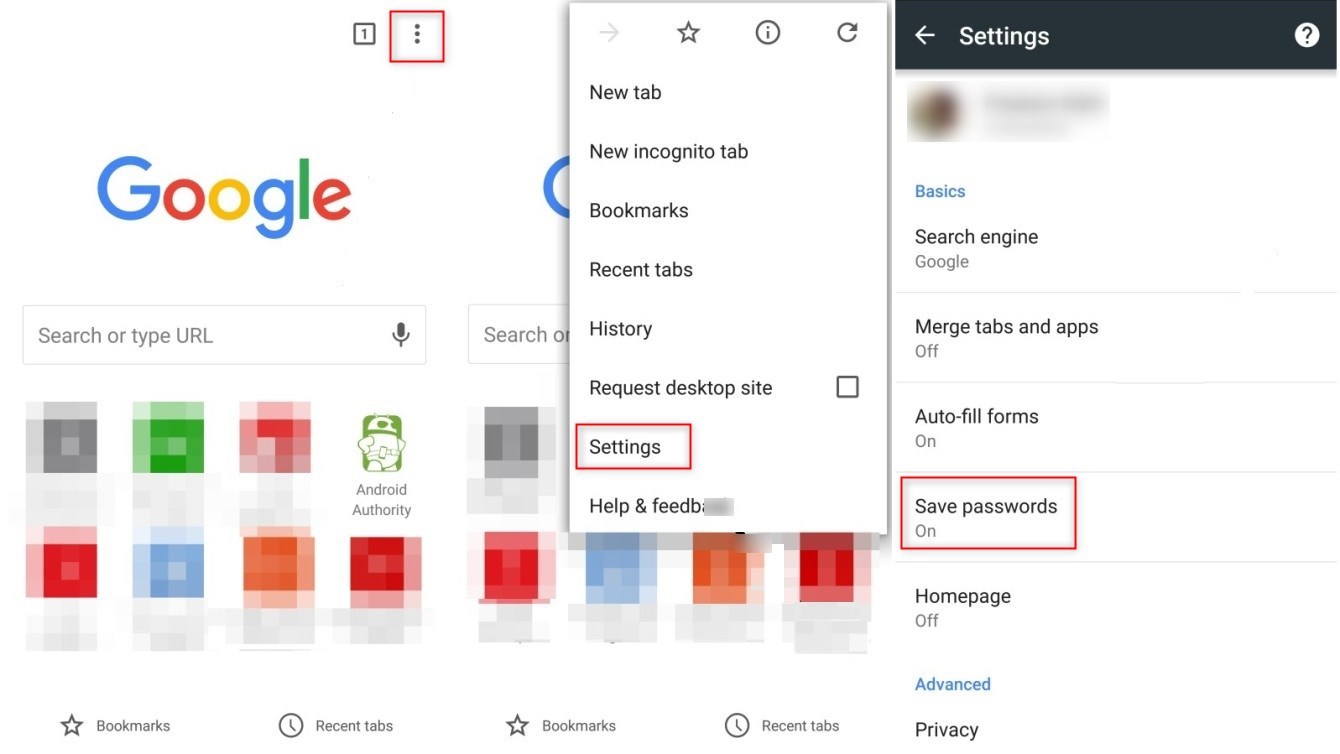
Chrome for Android provides a straightforward path through Settings. Open Chrome, tap the three-dot menu, select Settings, then choose Privacy and security followed by Delete browsing data. Check Cookies and site data and tap Delete data to confirm. Chrome documents a Time range limit for deletion choices, with Last 15 minutes as the default and All time as the broadest option. For single-site deletion, visit the site, tap the three-dot menu, select More > Page info > Cookies and site data > Delete to remove only that site's cookies. Note that clearing cookies while signed in to Chrome does not sign you out of your Google Account.
Clear cookies in Firefox for Android
Firefox for Android supports single-domain cookie deletion directly from the address bar. Open the site you want to clear, tap the Shield/Lock icon in the address bar, then tap Delete and confirm by tapping Clear. Mozilla's retrieved Android page documents clearing cookies and website data for a single domain in Firefox for Android, not necessarily all cookies at once.
Clear cookies in Samsung Internet Browser
Samsung Internet Browser users can clear cookies through Settings. Open the browser, tap the three-line menu, select Settings, then choose Privacy & security > Delete browsing data. Check Cookies and site data and tap Delete to confirm. This clears all stored cookies for the browser.
What happens when you clear cookies
Clearing cookies signs you out of most websites, resets saved preferences like language or theme settings, and removes tracking data that advertisers use. This action improves privacy by limiting what websites and data brokers can collect about your browsing history and login credentials. It also helps troubleshoot issues like slow loading, freezing pages, or errors caused by corrupted cookie files, while freeing up phone storage space.
When to clear cookies instead of other browsing data
Clearing cookies specifically solves problems where websites remember incorrect login states, show outdated content, or fail to load due to cookie conflicts. If a site displays errors or won't log you out, clearing only cookies often fixes it without losing cached images or browsing history. Clear cache separately when pages look broken or load slowly due to old stored files. Clear history when you want to remove your browsing record. If clearing cookies alone doesn't resolve a persistent issue, a full data clear that includes cache and history may be needed.
Frequently Asked Questions
Will clearing cookies delete my saved passwords?
No, clearing cookies does not delete saved passwords. Passwords are stored separately in Chrome's password manager and remain intact unless you specifically clear saved passwords in the Delete browsing data menu.
How often should I clear cookies on Android?
There is no set schedule, but clearing cookies every few weeks or monthly helps maintain privacy and prevent performance slowdowns. If you notice website errors or unwanted targeted ads, clearing cookies immediately can help.
Does clearing cookies affect all browsers on my Android device?
No, clearing cookies in one browser only affects that browser's stored data. Each browser, Chrome, Firefox, Samsung Internet, stores its own cookies separately, so you must clear cookies individually in each browser you use.
Can I clear cookies for one website without affecting others?
Yes, both Chrome and Firefox for Android allow single-site cookie deletion. In Chrome, use More > Page info > Cookies and site data > Delete. In Firefox, tap the Shield/Lock icon in the address bar and follow the delete steps.
What happens if I clear cookies while signed into my Google Account?
Chrome states that clearing cookies does not sign you out of your Google Account. You remain signed in across Google services, but you will be logged out of other websites that used cookies to remember your login.
Related reading: How To Close Tabs On An Android Phone.