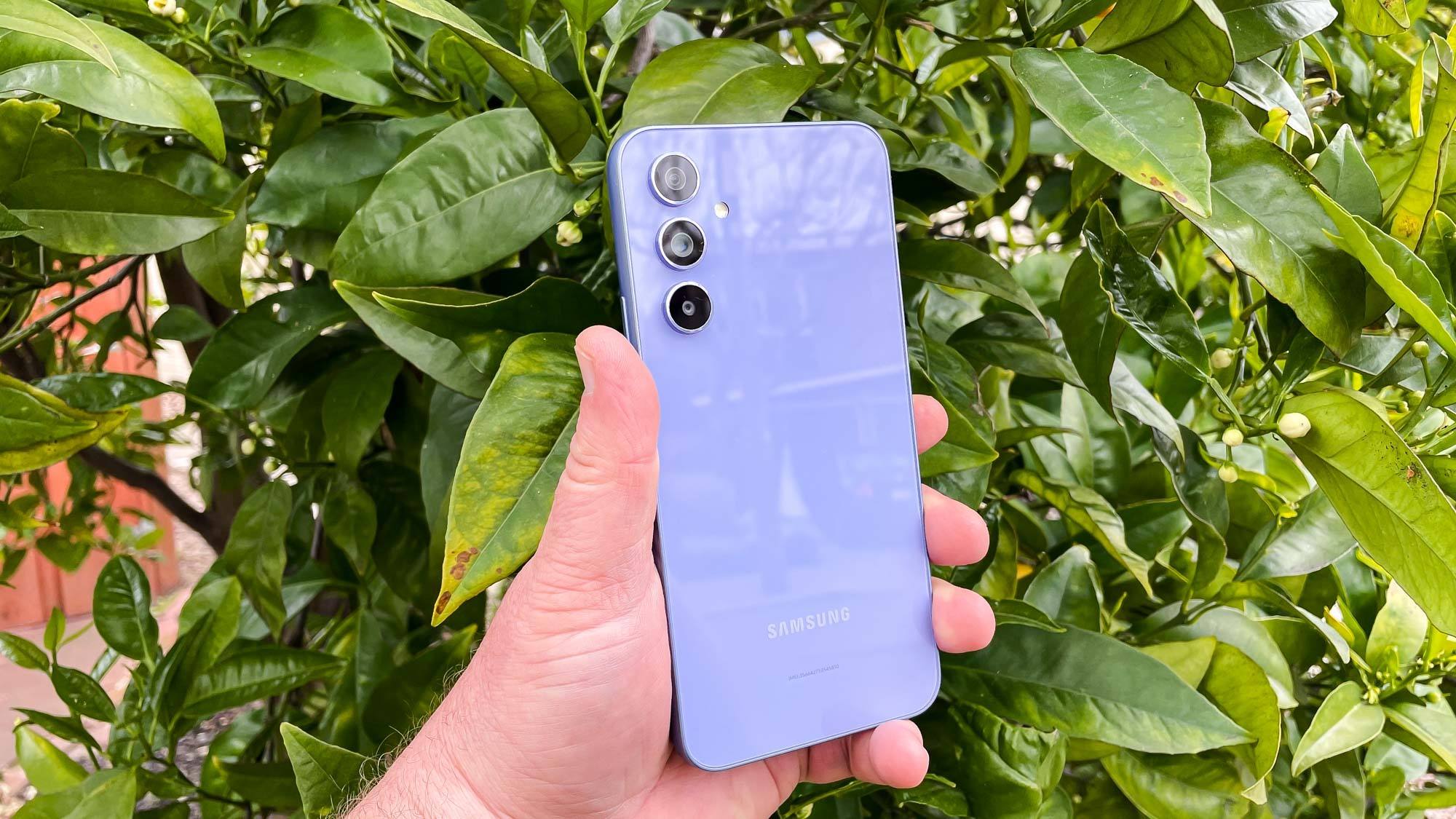
To switch your Metro phone to another Metro phone, you'll need to activate the new device on your existing account, which transfers your phone number and service. The process is straightforward, but official documentation is limited, so Metro Customer Care at 1-888-8METRO8 is your primary resource for help with activating phones and SIM cards on any carrier.
How to switch your Metro phone to another Metro phone: An overview of the switching process
Switching your Metro phone to another Metro phone means moving your existing phone number and service from your current device to a new one. This is typically done when you upgrade or replace your phone. While Metro by T-Mobile does not publish a single, comprehensive guide for this process, the activation FAQ confirms that Customer Care can assist if you run into issues. Because exact steps are not officially documented, contacting Metro directly is the most reliable way to complete the switch without errors.
Before you switch: what to prepare
Before you begin, gather the essentials. You will need your Metro account information, including your phone number and account PIN or password. You should also have your new phone's IMEI number ready; this unique identifier is often required for activation. You can find the IMEI number by dialing *#06# on your current Metro phone. Finally, back up your data from your current device so you don't lose contacts, photos, or messages during the transition.
How to activate your new Metro phone
Metro's activation FAQ states that if you cannot find the activation email or the activation flow did not work, you should call Customer Care at 1-888-8METRO8. If you purchased the new Metro phone from a retail store, you may receive an activation code, which you enter during setup. Be prepared to provide your account details and the new phone's IMEI when you call.
Transferring your data after activation
Once your new Metro phone is activated, you can restore the backup you made from your old device. You can use built-in tools like Samsung Smart Switch or Apple's Quick Start to transfer data between phones. You can sync contacts with your Google or iCloud account to back them up. You can transfer photos and videos by connecting your phone to a computer via USB and copying the files. You can upload important documents and files to cloud storage services such as Google Drive, Dropbox, or OneDrive. You can use third-party apps to back up and export text messages to your computer or cloud storage. For apps that don't have built-in backup, you may need to re-download them and log in again on your new device. The method for doing this depends on how you backed up your data. If you used a cloud service, you can sign in to that service on your new phone and restore your files. If you backed up to a computer, you can connect your new phone and transfer the files. The exact menu paths and tool names vary by device, so refer to your phone's built-in help or contact the manufacturer for specifics.
What to do with your old Metro phone
After you've successfully switched to your new Metro phone, your old device will no longer have active service. Before you do anything with it, perform a factory reset to erase all personal information. Once reset, you have options: keep it as a backup, sell it, or recycle it responsibly. Removing your data is essential before selling or recycling to protect your privacy.
Frequently Asked Questions
What do I need to switch my Metro phone to another Metro phone?
You need a compatible Metro phone, your current phone number, your account information including PIN or password, and a SIM card.
How do I switch my Metro phone to another Metro phone?
Power off both phones, move the SIM card from the old phone to the new one, power on the new phone, and follow the on-screen prompts to complete activation.
Can I switch my Metro phone to another Metro phone without calling customer support?
Some unofficial sources suggest you can make the switch through the myMetro app, the website, by calling 611, or in a store. However, these methods are not confirmed by official Metro documentation. Calling 1-888-8METRO8 is the verified way to get help if the activation process fails.
Will I lose my contacts and data when switching my Metro phone?
No, you should not lose your data if you back it up before switching. Back up your contacts, photos, and apps to a cloud service or your computer, then restore them on your new phone after activation. This ensures a smooth transition without data loss.
What happens to my old Metro phone when I switch?
Your old phone becomes inactive once your number and service are moved to the new device. You can keep it as a backup, sell it, or recycle it. Before parting with it, perform a factory reset to remove all personal information.
Is my new phone compatible with Metro's network?
Compatibility depends on the phone model and whether it supports Metro's network frequencies. Metro's official website has a device compatibility tool where you can enter the IMEI number to check compatibility. To confirm compatibility, you can also contact Metro Customer Care or visit a Metro store with your new phone's IMEI number.
Can I switch between phones multiple times?
There is no official documentation on device-transfer limits. If you need to switch phones frequently, it is best to contact Metro Customer Care to confirm there are no restrictions on your account. They can also assist with each activation.
Related reading: How To Switch My Straight Talk Number To A New Phone? and How To Activate Replacement Phone AT&T.