To set up voicemail on Boost Mobile, press and hold the 1 key on your phone's keypad to access the traditional voicemail menu, then follow the prompts to create a 4- to 9-digit password and select your greeting. Boost Mobile also offers a Visual Voicemail app for Android devices, which provides a different interface for setting up and managing voicemail.
How to set up voicemail on Boost Mobile: traditional vs. visual
Boost Mobile provides two voicemail paths. Traditional voicemail is accessed through your phone's keypad by pressing and holding 1, while Visual Voicemail requires downloading the Boost Visual Voicemail app from Google Play. Choose the method that best fits your device and preferences. Traditional voicemail is documented for Boost Mobile service generally; no specific phone models or software versions named.
Set up traditional voicemail on Boost Mobile
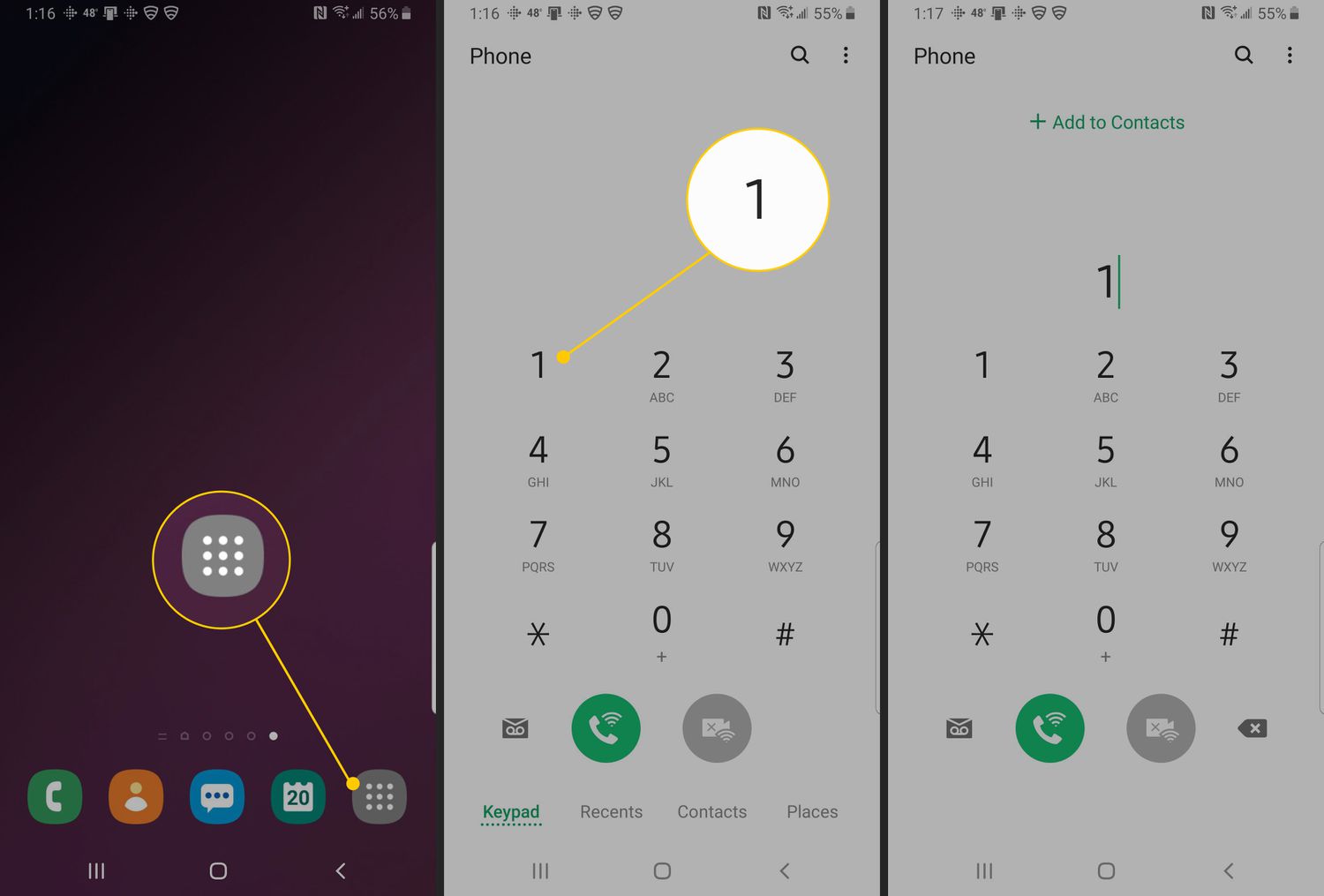
To set up traditional voicemail on Boost Mobile, follow these steps:
- Press and hold the 1 key on your phone's keypad.
- When prompted, create a voicemail password that is 4 to 9 digits long. Traditional voicemail password length is specifically 4 to 9 digits.
- Select a greeting type from the options provided.
- Wait for the confirmation message that voicemail is set up.
Choose your voicemail greeting
Boost Mobile documents three greeting options for traditional voicemail. You can choose a standard greeting that announces your phone number, a standard greeting that uses your recorded name, or a personal greeting that you record yourself. Three greeting types documented: standard with phone number, standard with recorded name, or personal greeting. The option you select will play for callers when you do not answer.
Set up Visual Voicemail on Boost Mobile (Android)
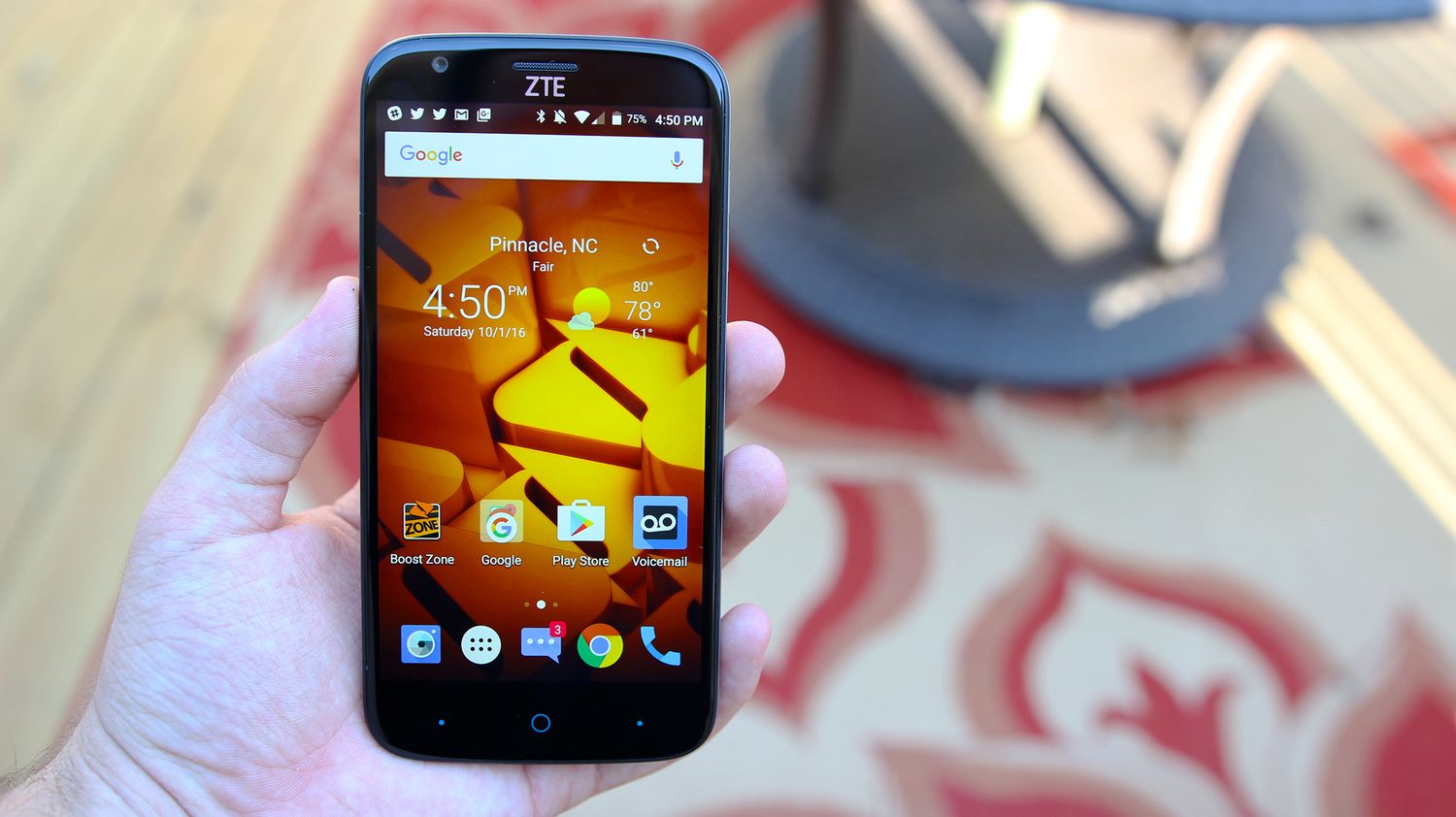
Android users can set up Visual Voicemail by downloading the Boost Visual Voicemail app from Google Play. Boost's Android Visual Voicemail page directs users to the Boost Visual Voicemail app rather than a phone menu path. Once installed, open the app and follow the on-screen prompts to complete the setup process, which includes creating your password and greeting.
Listen to and manage your voicemail messages
To retrieve traditional voicemail messages, press and hold the 1 key on your keypad, then enter your password when prompted. To listen to messages later, press and hold 1 again and enter password when prompted. For Android users with Visual Voicemail, open the Boost Visual Voicemail app to view and manage your messages directly from the app interface.
Frequently Asked Questions
How do I change my voicemail greeting?
To change your greeting, access your voicemail by pressing and holding 1, enter your password, and follow the menu prompts to select a new greeting option. You can choose between the standard greeting with your phone number, the standard greeting with your recorded name, or a personal greeting.
What should I do if I forgot my voicemail password?
If you forget your voicemail password, contact Boost Mobile customer service for assistance. They can help you reset the password so you can access your messages again.
Can I check my voicemail from another phone?
Yes, you can check your Boost Mobile voicemail from another phone. Dial your Boost Mobile phone number, and when your voicemail greeting begins, press the * key. Enter your voicemail password when prompted to access your messages.
How do I set up voicemail on an iPhone with Boost Mobile?
Boost Mobile's retrieved help pages document the built-in iPhone voicemail flow, which uses the press-and-hold 1 method for traditional voicemail setup.
Related reading: How To Set Up Voicemail On Spectrum Mobile.