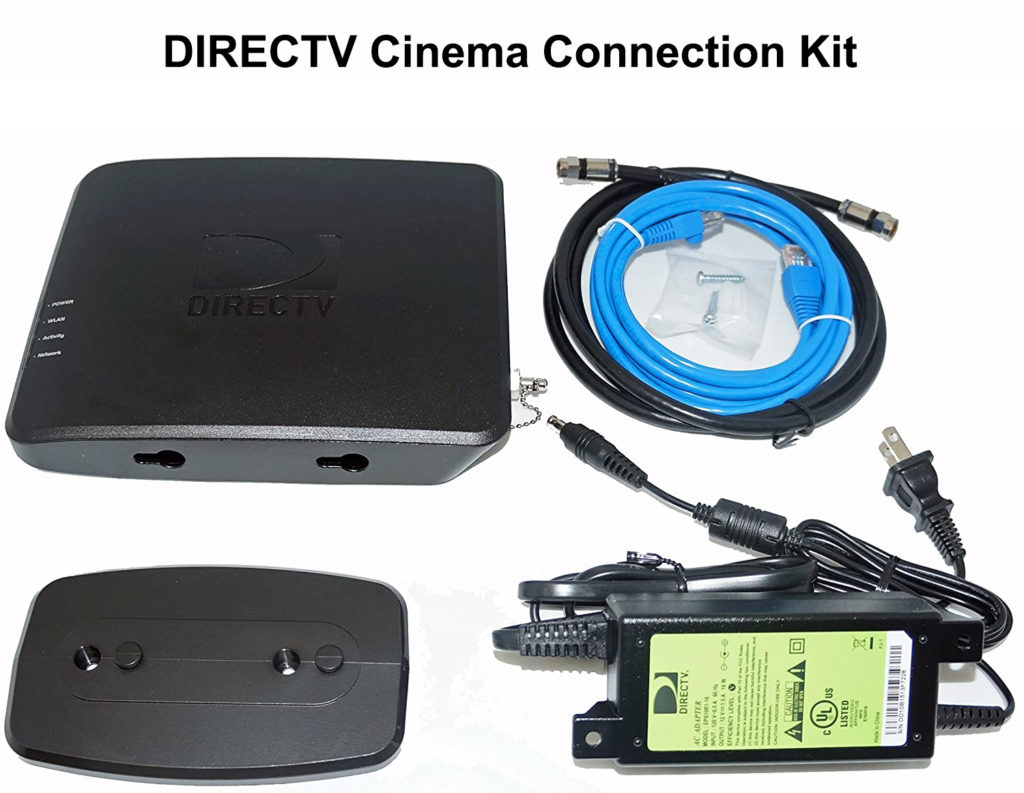
To hook up wireless internet to DirecTV, use your remote to press MENU, then go to Settings > Internet Setup > Connect Now, select Set Up Wireless, choose your home Wi‑Fi network, enter the network password, and select Continue. This direct on‑screen process connects your receiver to your home network without any extra cables or equipment.
How to hook up wireless internet to DIRECTV
DirecTV’s on‑screen menu provides the exact path for setting up wireless connections. Follow these steps on your Genie HD DVR, H44, or H26K receiver:
- Press MENU on the DirecTV remote.
- Select Settings > Internet Setup > Connect Now.
- After the system checks the connection status, select Set Up Wireless.
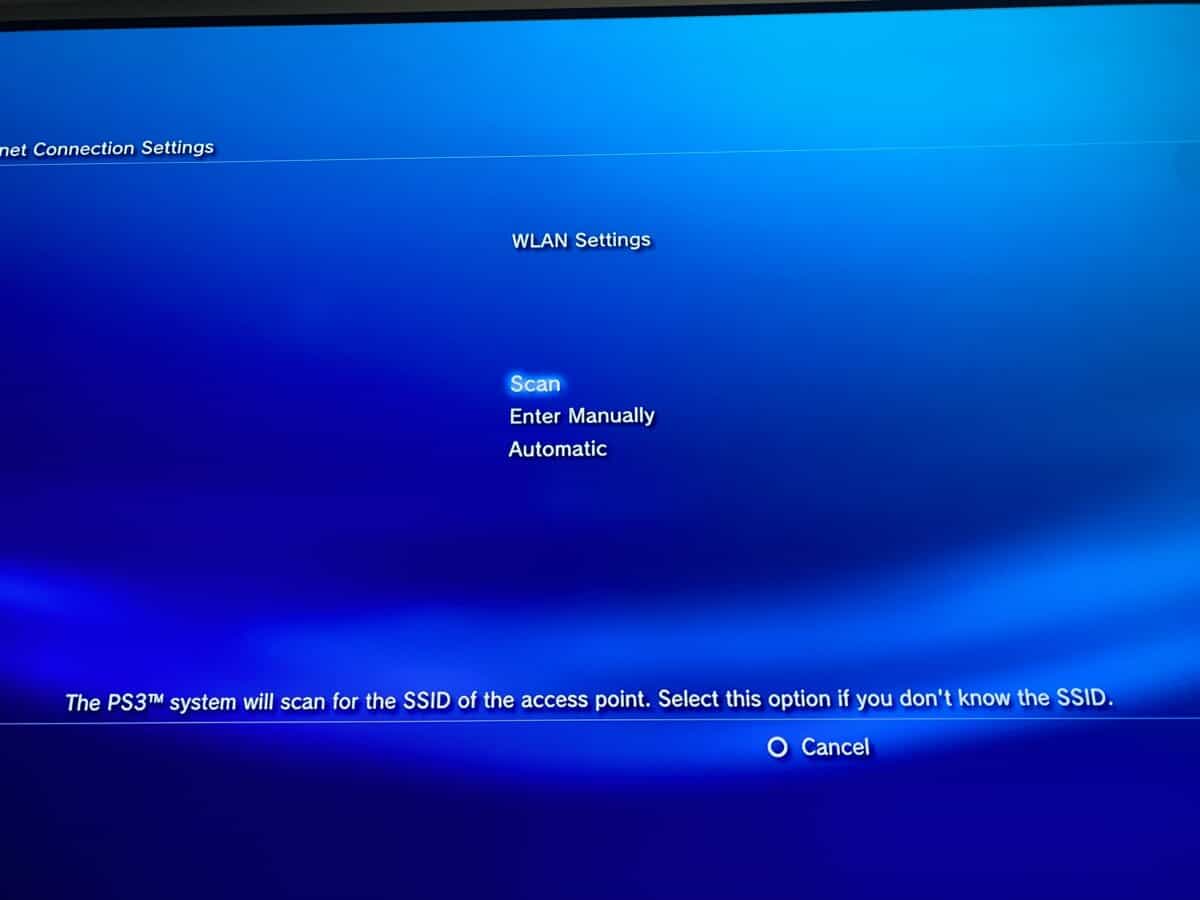
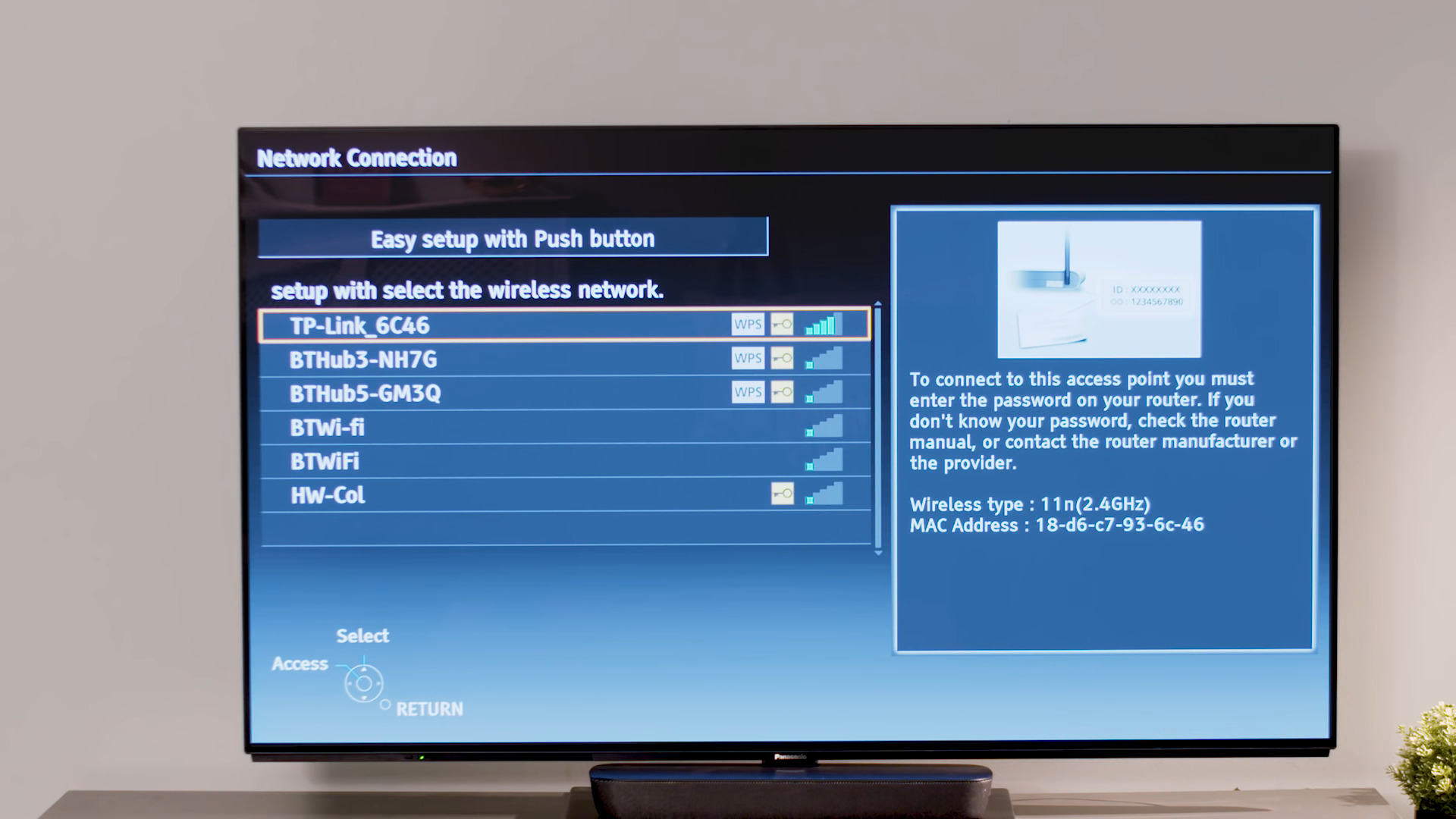
- Choose your wireless network from the list of available networks.
- Enter your wireless network password (the same Wi‑Fi password used for your router or hotspot).
- Select Continue to complete the connection.
If you are setting up a receiver for the first time, the steps are the same. The receiver will confirm when the connection is successful. A shorter menu path is Menu > Settings > Internet Setup > Connect Now. The DIRECTV business user guide documents the wireless setup steps specifically for H44 and H26K receivers, including selecting Begin Internet Setup.
Reconnecting a DIRECTV receiver that was previously online
If your receiver was connected to your wireless network before but lost the connection, you have two options. First, from the Settings > Internet Setup > Connect Now screen, select Reconnect Now to restore the previous connection. If that does not work, use the Restore Defaults option from the wireless setup flow to clear the saved network information and start fresh. If the receiver was previously connected and lost connection, you can use Restore Defaults from the wireless setup flow on its 'Get More TV Features For Free With DIRECTV' page.
Checking your DIRECTV internet connection status
To see whether your receiver is connected to the internet, press the DASH (-) button twice on your remote. The screen will display one of three statuses: Connected means the receiver is online and working. Never Connected or Not Connected means the receiver has not been set up for internet or has lost its connection, and you need to run the internet setup process.
Connecting DIRECTV to an iPhone personal hotspot
You can connect your DirecTV receiver to an iPhone personal hotspot by using the receiver’s standard wireless setup menu. On your iPhone, open Settings > Personal Hotspot (or Settings > Cellular > Personal Hotspot) and turn on Allow Others to Join. Make sure Wi‑Fi and Bluetooth are turned on, and keep the iPhone within 30 feet (10 meters) of the receiver. On the receiver, press MENU and follow the same steps for setting up a wireless network, then select the iPhone’s hotspot from the list of networks and enter the Wi‑Fi password shown on the iPhone. If you are connecting another Apple device that is signed into the same Apple Account, no password is needed. For Instant Hotspot, devices must meet minimum system requirements.
Troubleshooting DIRECTV wireless connection problems
If the connection fails during setup, go back to Settings > Internet Setup and select Repeat Internet Setup to try again. Before starting, check your router for a WPS logo, some DirecTV support articles note that a WPS‑capable router can simplify the process. After a successful connection, it can take up to 48 hours for all On Demand programming to become available. If the receiver still does not connect after repeating the setup, exit the menu and contact DirecTV support.
Tips for a stable wireless connection
A stable connection is required for internet features such as On Demand programming. Place your wireless router in a central location, away from walls and large metal objects, to minimize interference. Keep the receiver and router within a reasonable distance to maintain a strong signal. Once connected, test the connection by accessing On Demand content or streaming features. If you are looking for general advice on how to make my wireless router faster, ensure the router firmware is up to date and reduce the number of devices using bandwidth during streaming.
Frequently Asked Questions
Do DIRECTV receivers have built‑in Wi‑Fi?
Yes, most current DirecTV receivers, including the Genie HD DVR, H44, and H26K models, have built‑in Wi‑Fi and do not require an external adapter to connect to a wireless network.
Do I need extra equipment to connect my DIRECTV receiver to wireless internet?
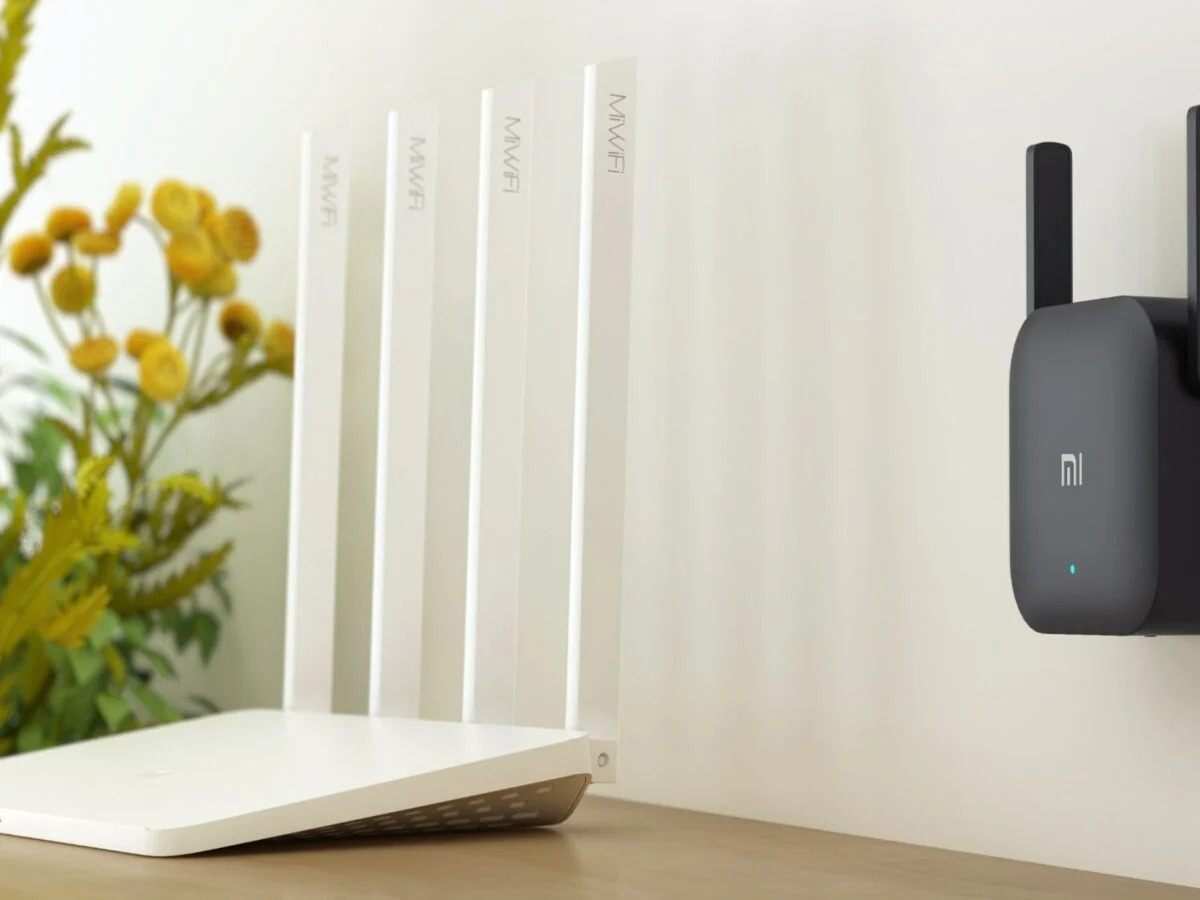
In most cases, no. The receiver’s built‑in Wi‑Fi handles the connection. If your router is far from the receiver, you may need a Wi‑Fi extender to improve signal strength.
Can I stream on‑demand content from DIRECTV using wireless internet?
Yes. Once the receiver is connected to your wireless network, you can stream On Demand movies, TV shows, and other content directly to your TV without a separate streaming device.
Can I connect multiple DIRECTV receivers to the same wireless network?
Yes, you can connect multiple receivers to the same wireless network. However, streaming on multiple receivers at the same time may require a faster internet connection to avoid buffering or reduced quality.
Related reading: How To Set Up Wireless Repeater.