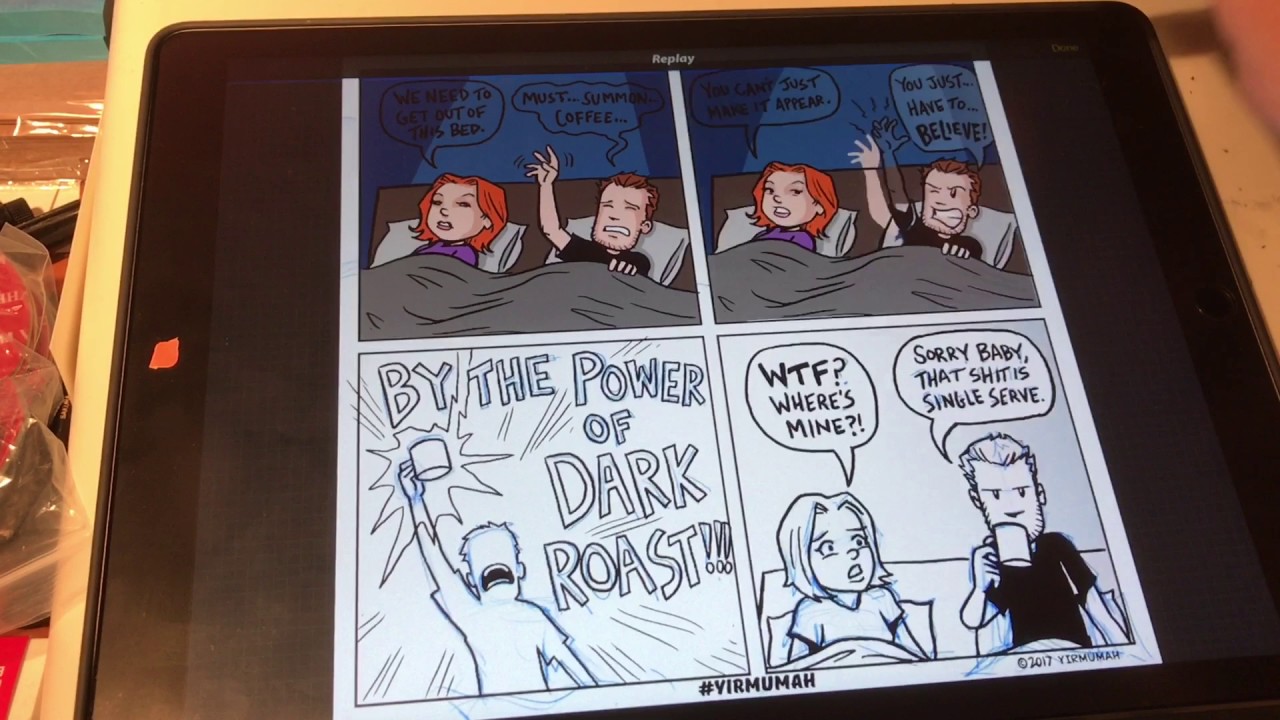
To make comic panels in Procreate, you draw a rough rectangle and hold your stroke to snap it into a perfect shape using QuickShape, then create white gutters between panels with the Selection tool. Because Procreate is an iPad-only app with no dedicated panel tool, this method uses built-in features like QuickShape and drawing guides to produce clean, consistent panel borders.
How to make comic panels in Procreate: What you need
Procreate requires an iPad running iPadOS 16.3 or later for the current version. There is no Android version or dedicated comic-panel tool inside the app. All panel borders are created using Procreate’s built-in QuickShape and Selection features, so no third-party add-ons are needed.
Set up your canvas and drawing guide
- Open Procreate and create a new canvas with custom dimensions that match your intended page size.
- Activate the 2D Grid Drawing Guide by tapping the wrench icon, selecting Canvas, then tapping Edit Drawing Guide. Choose 2D Grid and adjust the grid spacing to help you plan your panel layout.
- Toggle the guide on so you can see the grid lines while drawing.
Draw panel borders with QuickShape
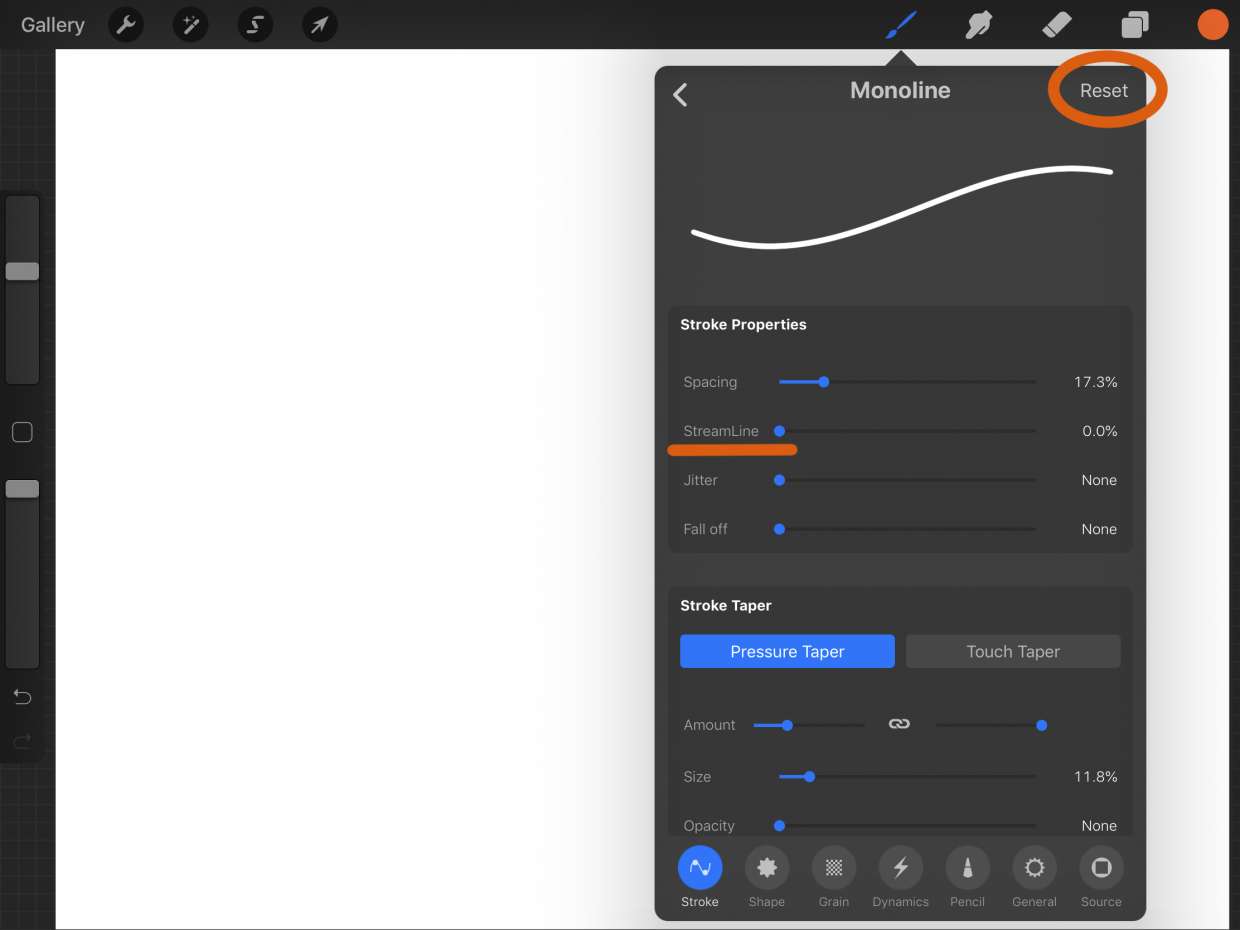
- Select a brush from the brush library. A standard round brush or monoline brush works well for clean panel lines.
- Draw a rough rectangle on the canvas where you want a panel border.
- Without lifting your stylus or finger, hold the stroke in place for a moment. Procreate will snap the rough shape into a perfect rectangle with straight edges and sharp corners.
- Release to finalize the shape. Repeat for each panel on the page.
The Shapes tool icon looks like a square made up of smaller squares. You can resize and reposition a shape by dragging the handles located around the edges. You can customize the shape further by adjusting the stroke and fill settings.
Create gutters using the Selection tool
- Use the Selection tool (the S icon) to mark the space between two panels. You can choose Rectangle or Freehand mode depending on the gutter shape.
- With the gutter area selected, fill it with white using the Color panel and the Paint Bucket, or erase the area by inverting the selection and deleting unwanted lines.
- Continue for all gutters until each panel is separated by clean white space.
You can add borders and gutters using various brush tools, not just the Selection tool.
Add text and speech bubbles
Use Procreate’s Add Text tool (tap the wrench icon, then Add Text) to place dialogue and narration inside your panels. For speech bubbles, draw an oval or rectangle with QuickShape, then use the Selection tool to cut out a tail. You can also use the shape tools to create bubble outlines and fill them with white. This workflow pairs well with coloring, shading and rendering in Procreate, letting you complete the entire page inside one app. You can apply effects like Blur, Noise, and Color Balance to panels.
Export your comic page
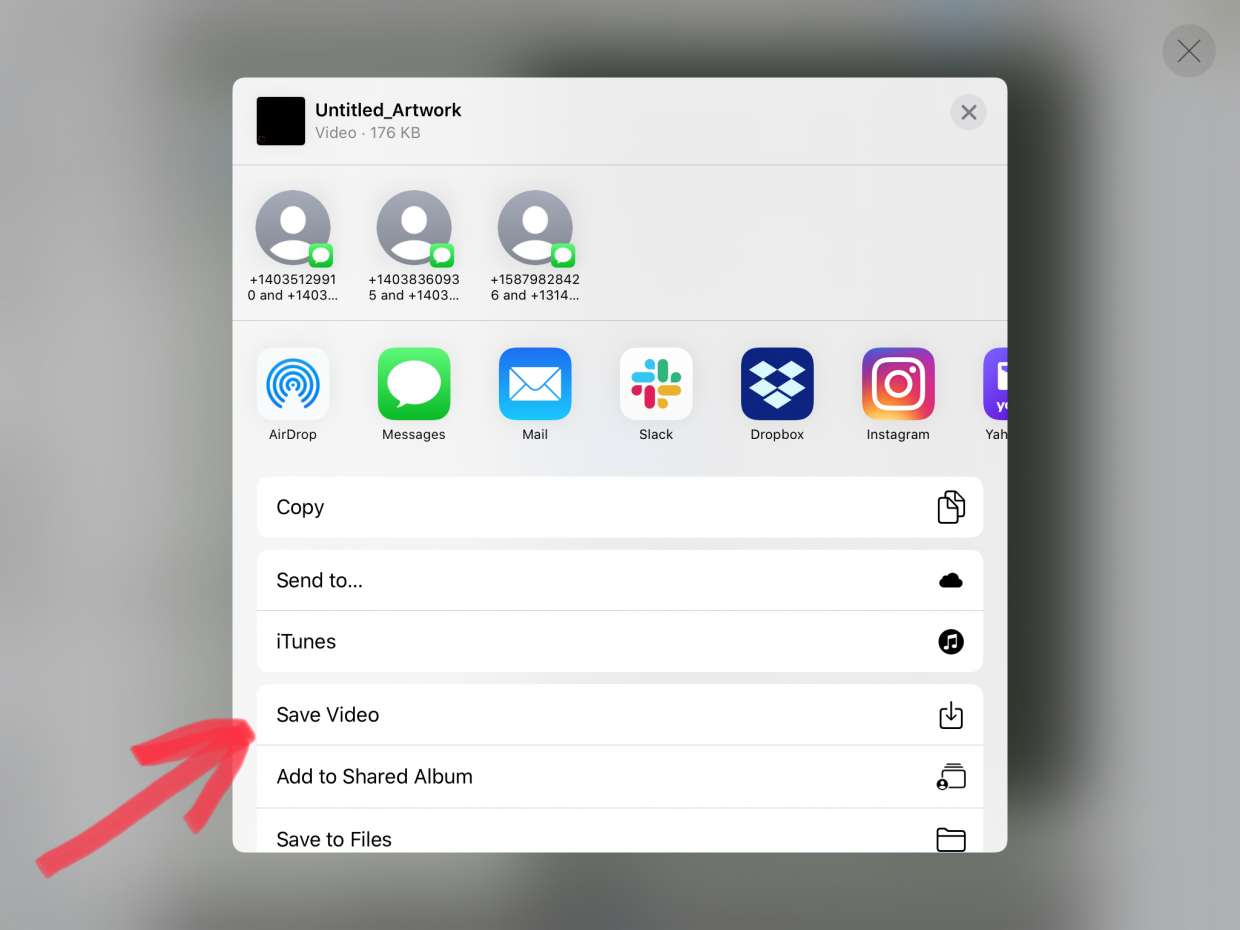
- Tap the wrench icon and select Share.
- Choose PNG or PSD as the file format. PNG works well for sharing online, while PSD preserves your layers for further editing in desktop software.
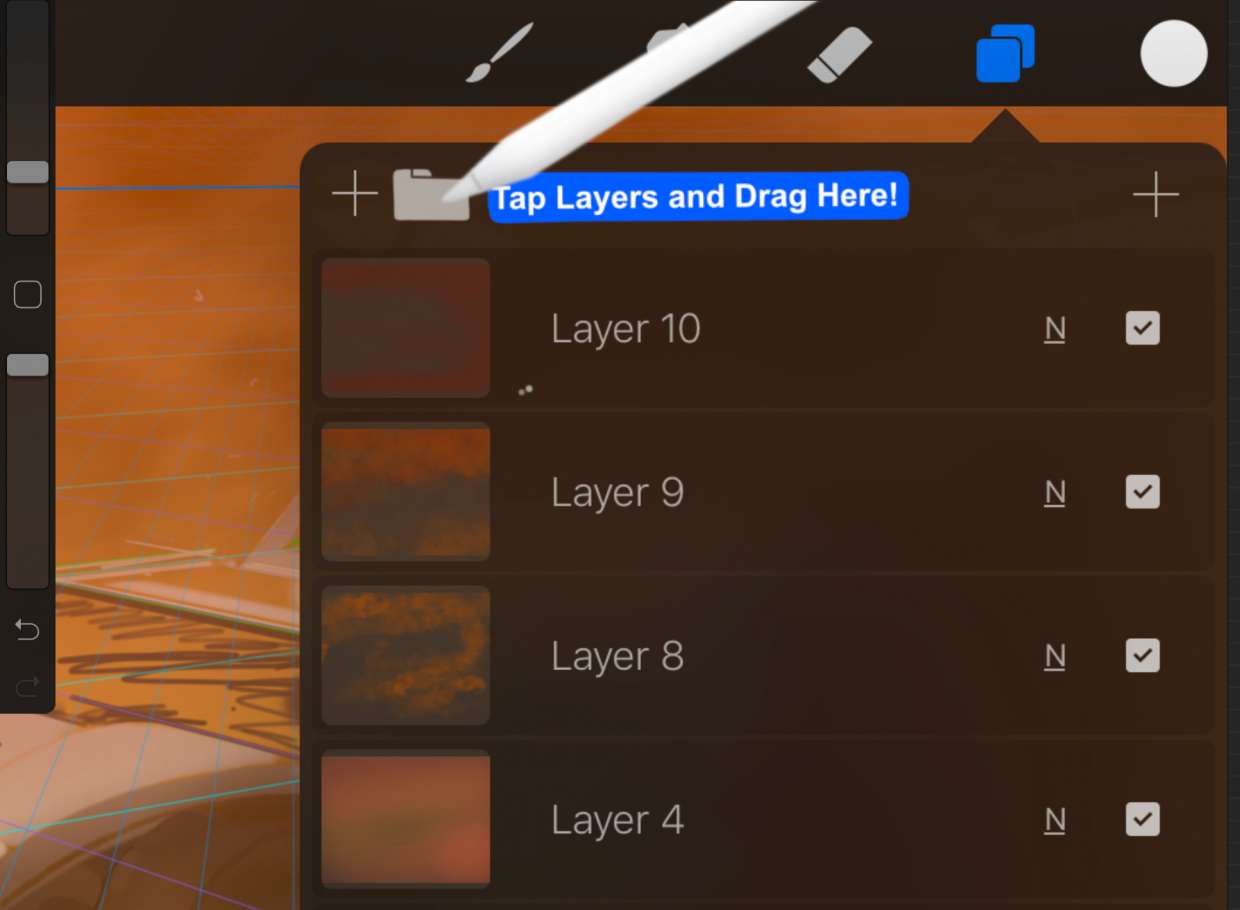
Understanding Procreate tools, layers and file management helps you keep each panel on a separate layer, making it easier to edit borders, move panels, or adjust gutters without affecting your artwork.
Frequently Asked Questions
Can I make comic panels in Procreate on Android?
No. Procreate is an iPad-only app, and no Android version is documented in the official sources.
What iPad version is needed for the current Procreate?
The current Procreate version requires iPadOS 16.3 or later.
Does Procreate have a dedicated comic panel tool?
No. There is no built-in panel tool, so you must use QuickShape, Selection, and drawing guides to create panel borders manually.
How do I create gutters between panels?
Use the Selection tool to mark the gap between panels, then fill that selection with white or erase the area to create a clean gutter.
Can I export my comic page at print resolution?
Related reading: How To Make A Sticker On Procreate.