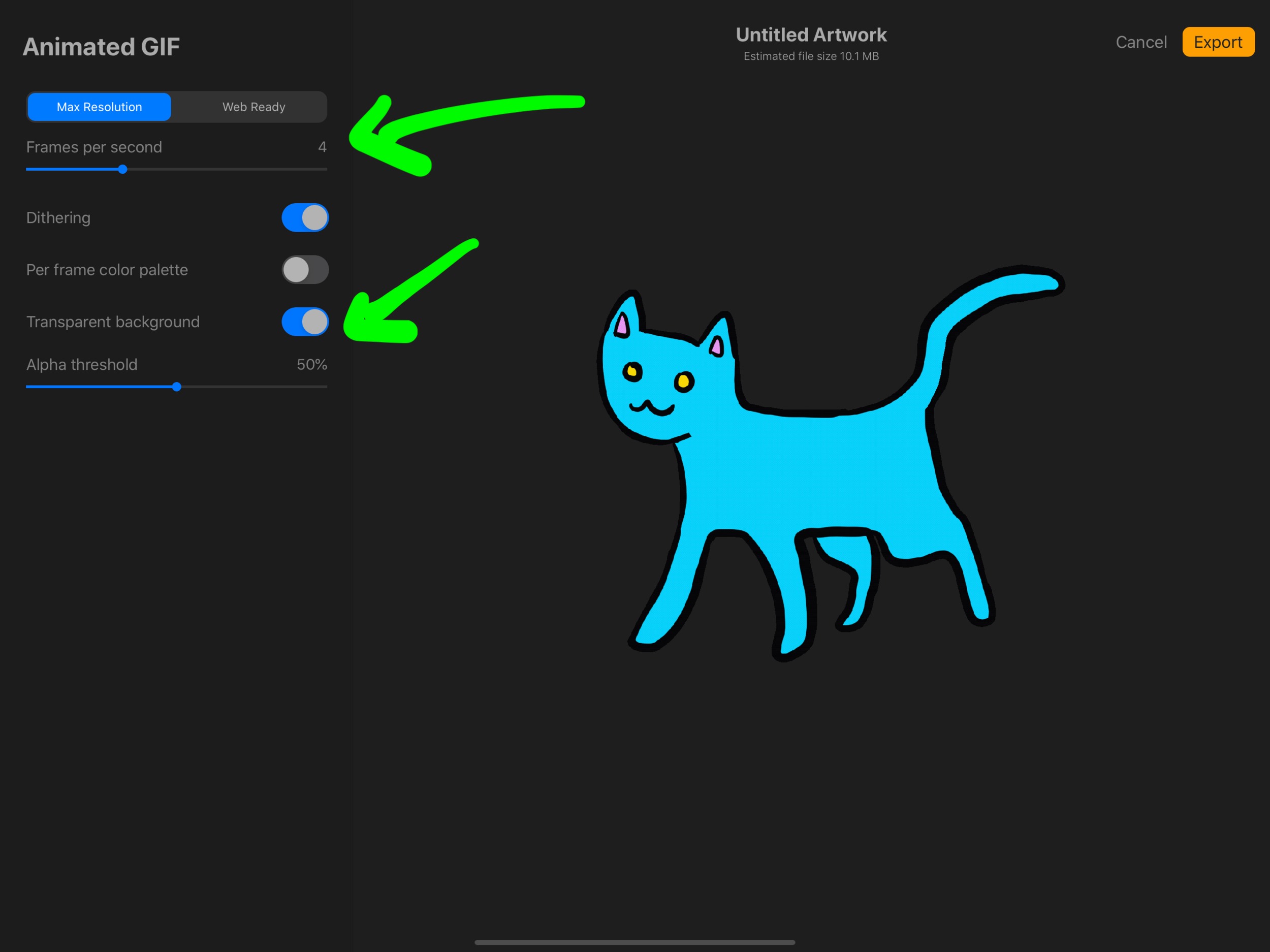
To make a GIF on Procreate, you build your animation from layers, with each layer becoming a single frame and the bottom layer playing first. This method works on both iPad and iPhone, though the export menu paths differ between Procreate and Procreate Pocket.
How to make a gif on procreate: the layer method
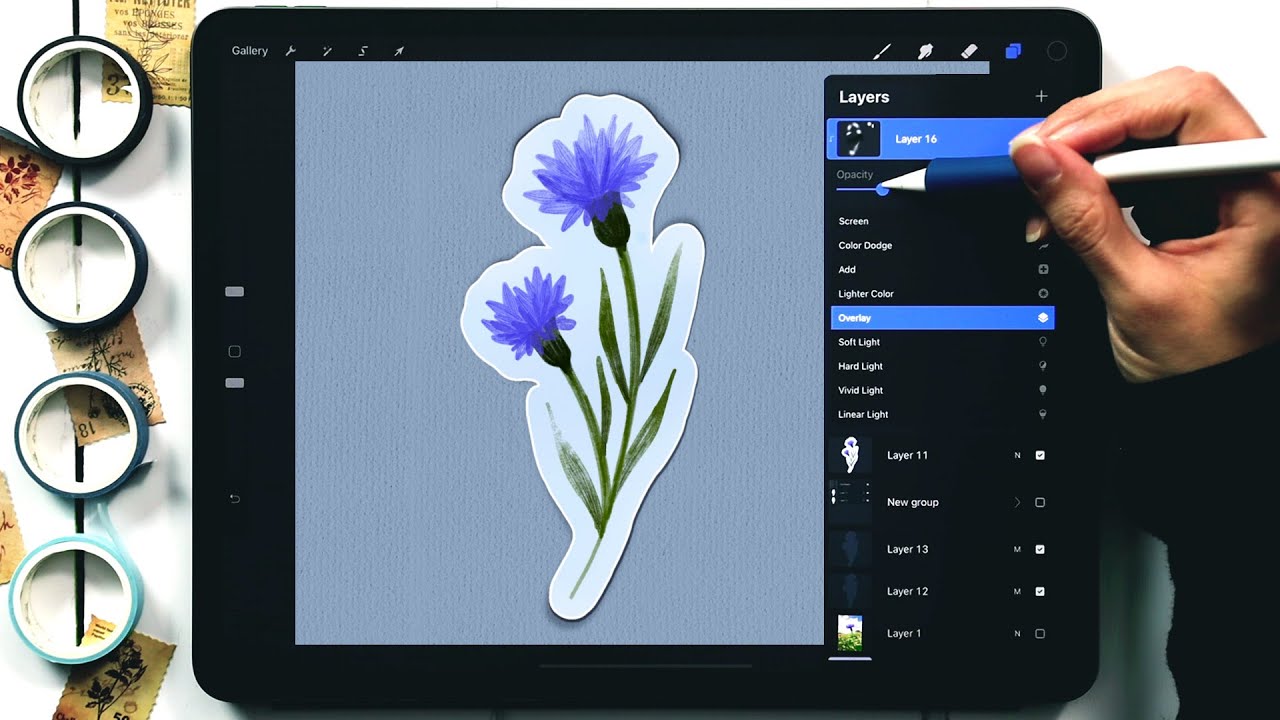
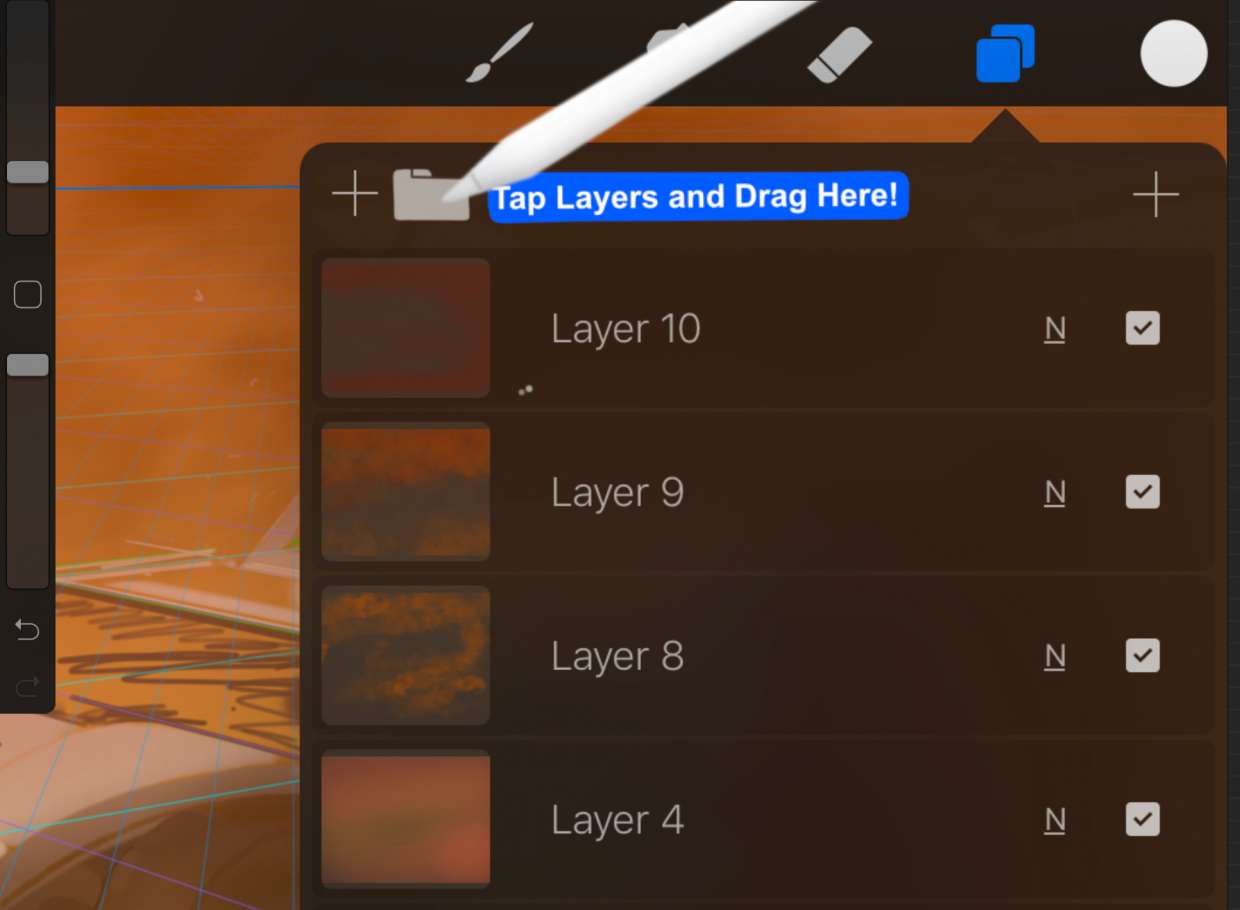
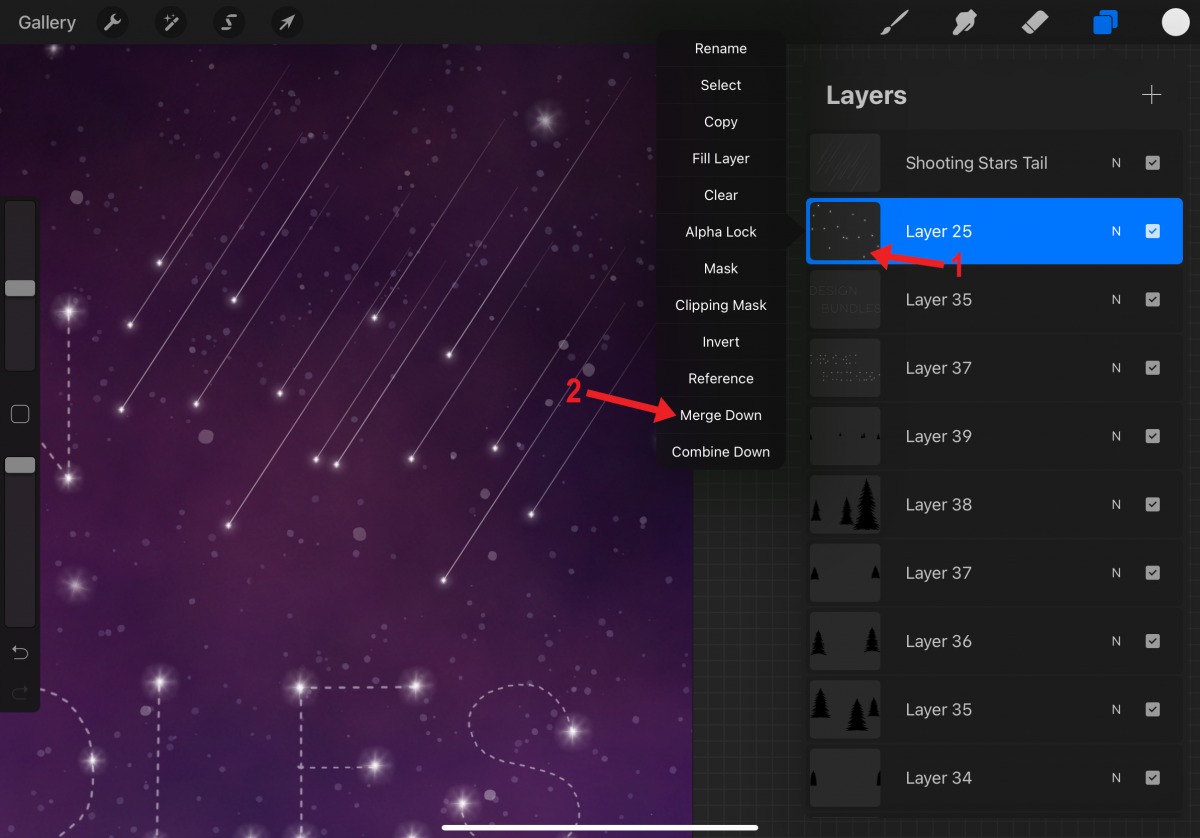
Procreate treats each layer in your canvas as one frame of the final GIF, with the bottom layer appearing first in the sequence. This means you do not need a separate animation setup step, simply draw each frame on its own layer and export. The process is identical whether you are using Procreate on an iPad or Procreate Pocket on an iPhone, except for the menu path to reach the export settings.
Setting up your canvas and layers
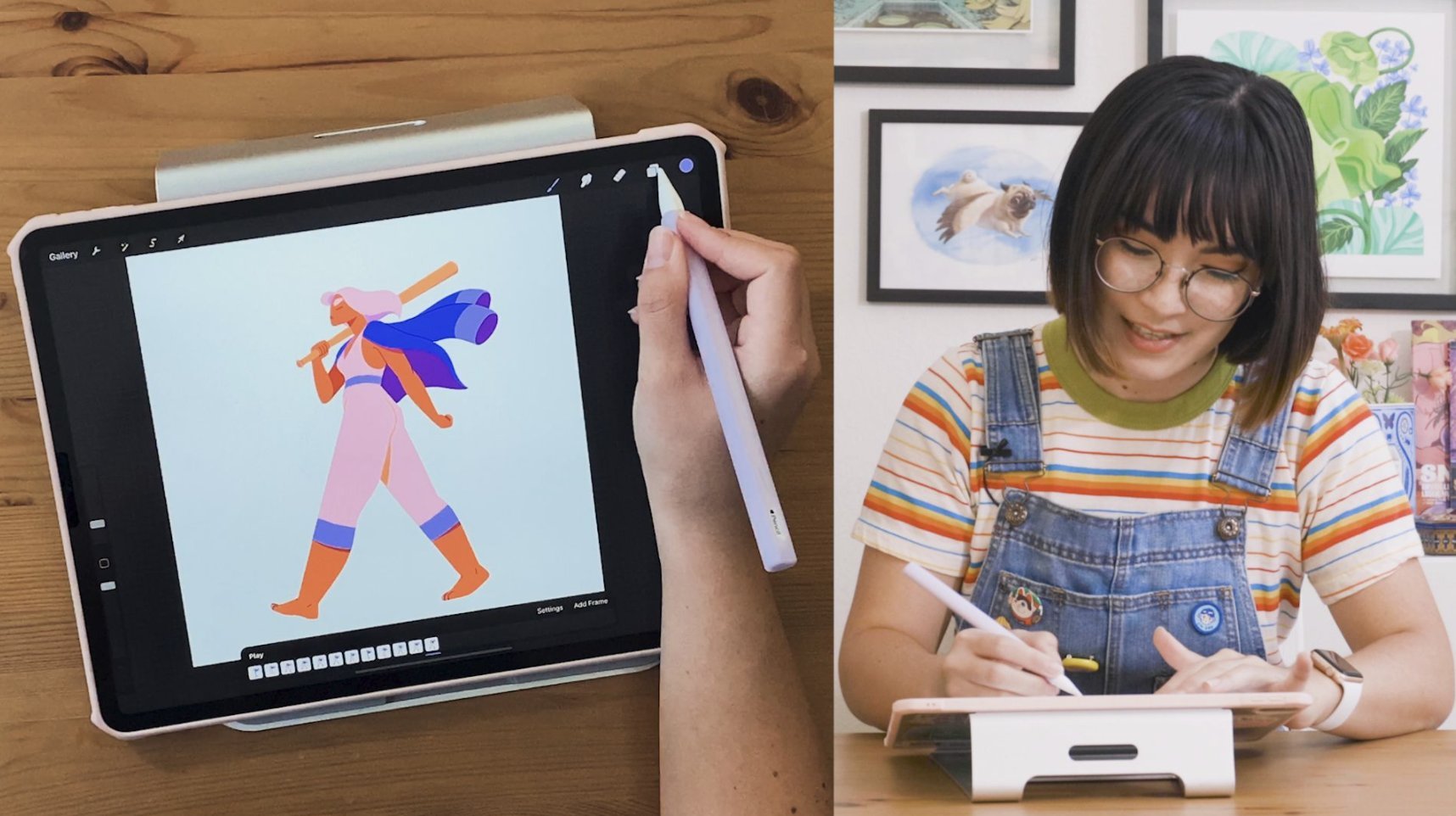
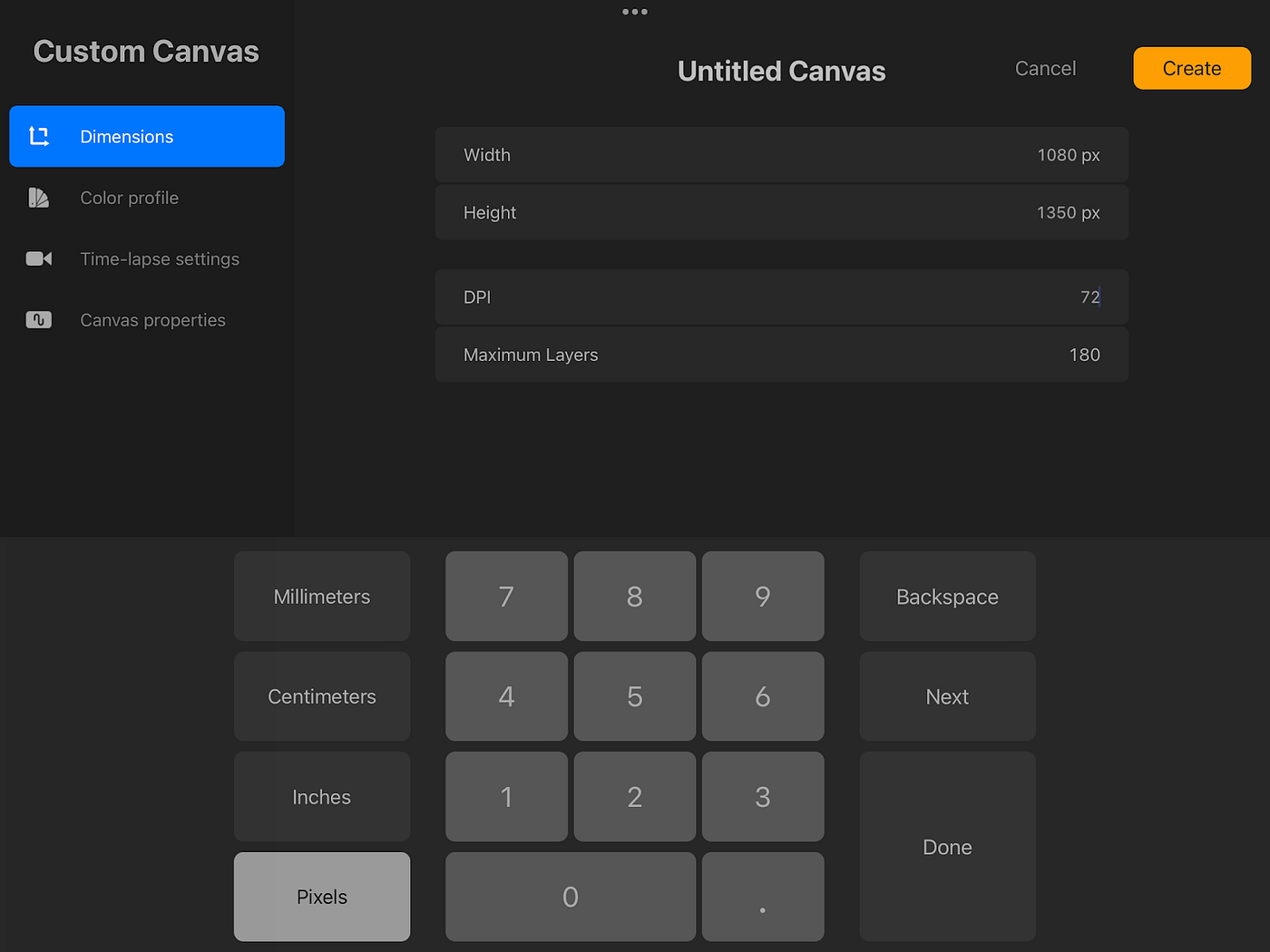
Start by creating a new canvas. While no specific canvas size is required for GIFs, a square canvas works well for most sharing scenarios. A recommended canvas resolution of 72 pixels per inch (ppi) or higher ensures crisp animation. Once your canvas is open, draw the first frame of your animation on layer 1. Add a new layer for each subsequent frame, keeping the bottom layer as the first frame. To make animation on Procreate, you simply draw each frame’s content on its own layer, making small changes from one layer to the next to create the illusion of movement. The onion skinning feature shows previous frames faintly as a reference while animating. The animation timeline gives full control over timing and playback, including adjusting duration of each frame and adding keyframes. Procreate tools, layers and file management make this process straightforward, as you can reorder, rename, and group layers to keep your animation organized. Save progress regularly via wrench icon → Canvas tab → Share to device or cloud storage.
Exporting a gif on iPad
When your layers are ready, follow this verified path to export an animated GIF from Procreate on iPad:
- Tap the Actions menu (wrench icon) in the top toolbar.
- Select Share from the menu.
- Choose Animated GIF from the sharing options.
The export settings interface will appear, allowing you to adjust quality, speed, and other options before saving.
Exporting a gif on iPhone (procreate pocket)
Procreate Pocket on iPhone uses a different menu structure. To export a GIF from Procreate Pocket:
- Tap Modify in the top toolbar.
- Select Actions.
- Choose Share, then Share Layers.
- Finally, select Animated GIF.
After this, the same export settings screen appears as on the iPad version.
Choosing your gif export settings
Once you select Animated GIF, you will see several controls that affect the final output:
- Max Resolution vs. Web Ready: Max Resolution produces higher quality and a larger file size. Web Ready reduces quality to create a smaller file, ideal for online sharing.
- Frames per second slider: Adjust this to control animation speed. Higher numbers make the animation play faster; lower numbers slow it down.
- Dithering: Enabling this option helps smooth color transitions in areas with limited colors, reducing banding.
- Per-frame color palette: When turned on, each frame gets its own optimized color palette, which can improve quality for animations with changing colors.
- Transparent background: Enable this to keep the background transparent, useful for overlaying the GIF on other designs or backgrounds.
Preview animation in real-time before exporting to ensure it looks as intended. After adjusting these settings, tap Export in the top right corner to save your GIF. Use Cancel to return to the canvas without exporting. Animated GIFs exported from Procreate loop by default.
Sharing and using your GIFs
The exported GIF can be saved to your photo library or shared directly to social media platforms, messaging apps, or email. You can also upload it to GIF hosting platforms, embed it in blog posts or websites, or use it in personal creative projects.
Frequently Asked Questions
Can I create a GIF on Procreate?
Yes, you can create a GIF on Procreate by using Animation Assist to sequence and loop frames drawn on separate layers.
Can I make a GIF on Procreate without using layers?
No. Procreate builds GIFs from layers, with each layer becoming one frame. You must have at least two layers to create an animation.
What iPad models support Procreate for GIF creation?
Procreate version 5.3.14 requires iPadOS 16.3 or newer and supports iPad Pro (M4), iPad Air (M2), iPad Pro 12.9-inch (1st through 6th gen), iPad Pro 11-inch (1st through 4th gen), iPad Pro 10.5-inch, iPad Pro 9.7-inch, iPad (5th through 10th gen), iPad mini (5th through 7th gen), and iPad Air (3rd through 6th gen).
Can I adjust the frame rate after exporting?
No. The frame rate is set during export using the frames per second slider. To change the speed, you must re-export the GIF with a different FPS value.
Is Procreate available on Android?
No. Procreate is documented only for iPad and iPhone (Procreate Pocket). The app is not available on Android devices.
Does Procreate support transparent backgrounds in GIFs?
Yes. The export settings include a transparent background option that preserves transparency in the final GIF, useful for overlaying animations on other images or backgrounds.
What are some tips for creating a GIF on Procreate?
Plan your keyframes first, experiment with brushes and effects, consider timing and pacing, and preview frequently to refine your animation.
What are the benefits of creating a GIF on Procreate?
Benefits include high-quality exports, flexible drawing and animation tools, integration with other Procreate features, and a powerful way to showcase your artistic skills.
Related reading: How To Make Symmetry In Procreate.