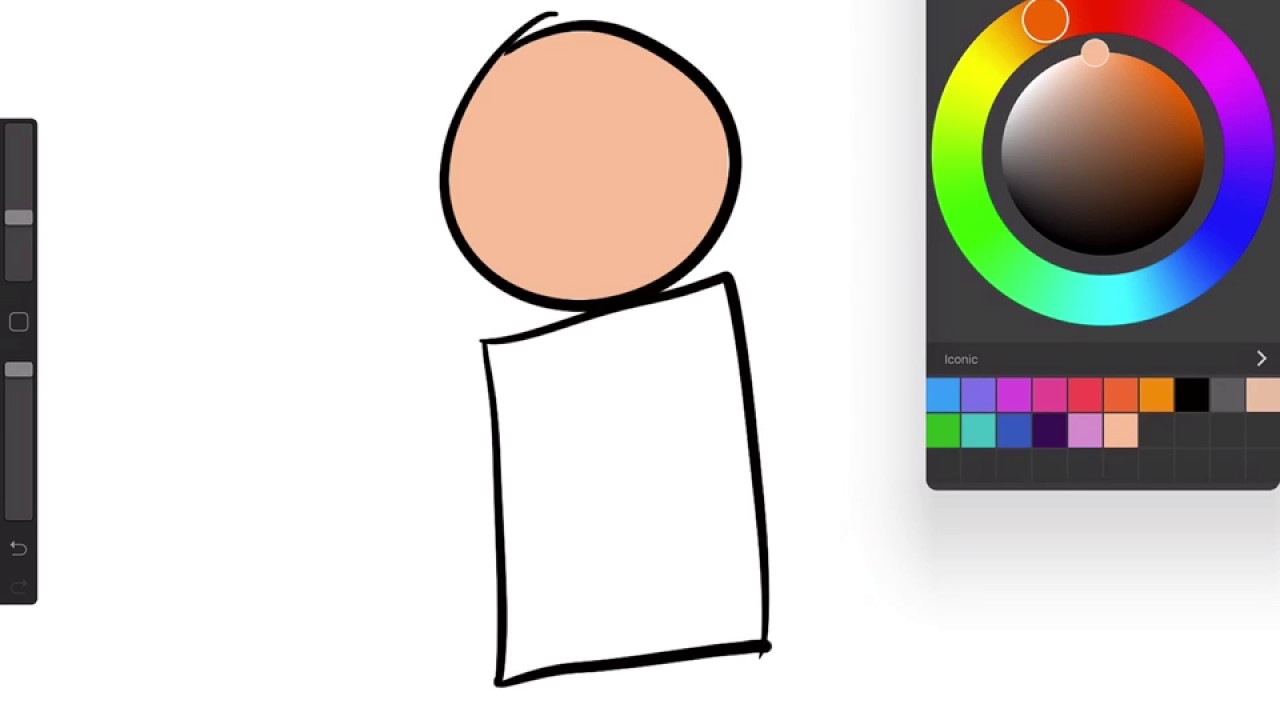
ColorDrop in Procreate is the feature that works like a bucket tool, letting you fill areas with solid color by dragging your active color onto the canvas. It is not a separate tool but a built-in gesture that fills until it detects an outline, making it the fastest way to add flat color to your artwork.
What is colordrop in Procreate?
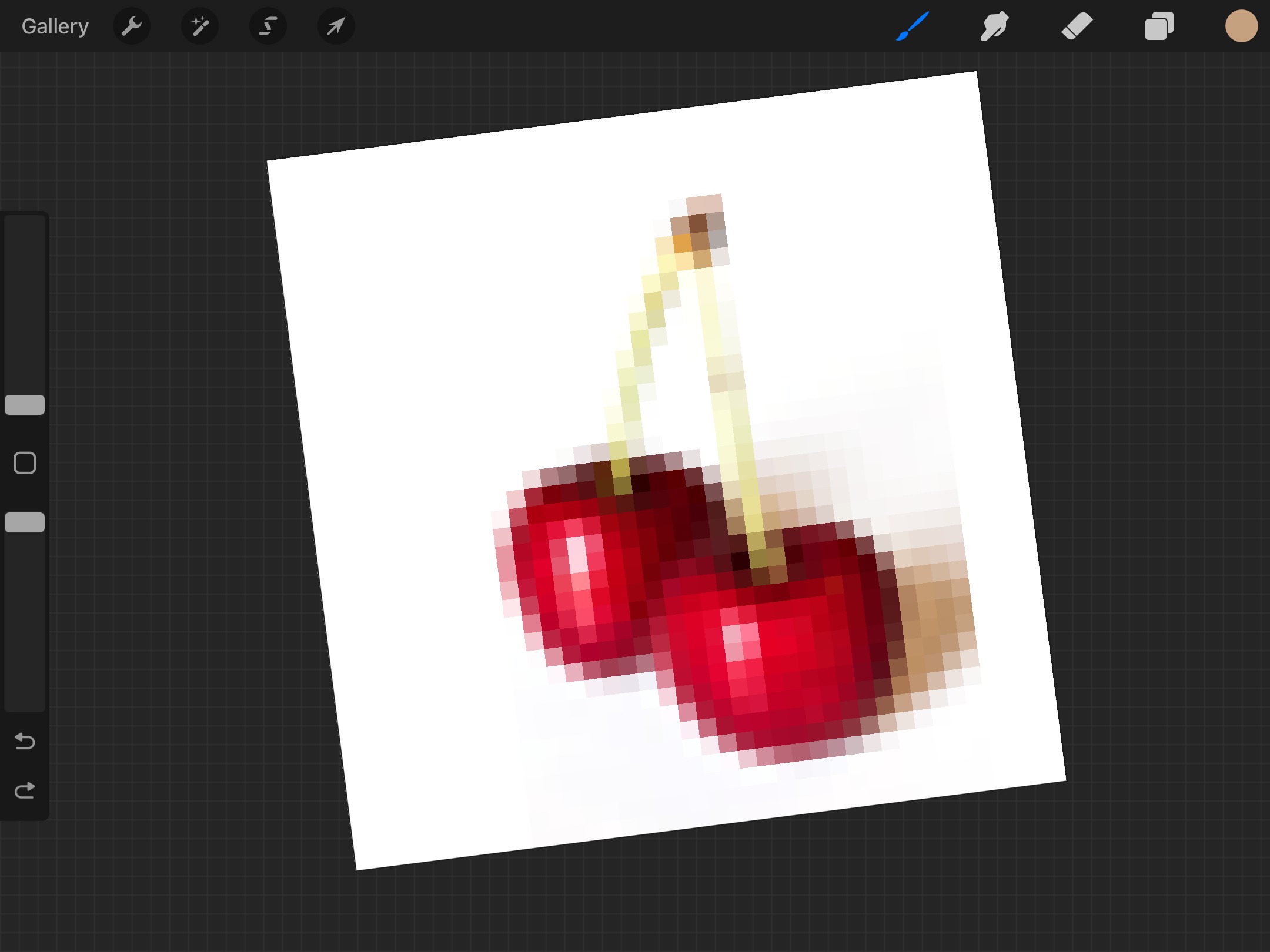
Procreate does not have a separate bucket tool. Instead, it uses a feature called ColorDrop, which the official help describes as working “like a bucket tool.” To use it, you drag the active color from the top right corner of the screen onto the area you want to fill. The fill stops automatically when it reaches a detected outline, giving you a clean, solid color fill in one motion.
How to fill an area using ColorDrop
- Open your artwork in Procreate for iPad.
- Select the color you want to use from the color disc in the top right corner.
- Drag that active color from the top right corner onto the area you want to fill.
- Release your finger to commit the fill.
This method works best on closed shapes. If the area is open, the fill may leak outside the intended boundary.
Adjusting the ColorDrop threshold
To control how far the fill spreads, you adjust the ColorDrop threshold. After dragging the color onto the canvas, do not release your finger. Wait until a thin blue bar appears above the artwork. Then drag left to fill less (a tighter, more precise fill) or right to fill more (a wider, more aggressive fill). Once you have the right amount, lift your finger to apply the fill. The Bucket Tool settings include options to adjust fill mode, opacity, and blending. A Contiguous setting controls whether the fill extends beyond the tapped area. An Anti-Aliasing setting smooths fill edges. A Dither option adds a grain pattern to reduce banding. A Reference Layer setting restricts the fill to a specific layer. Two filling methods are available: Normal and Threshold.
When ColorDrop might not work as expected
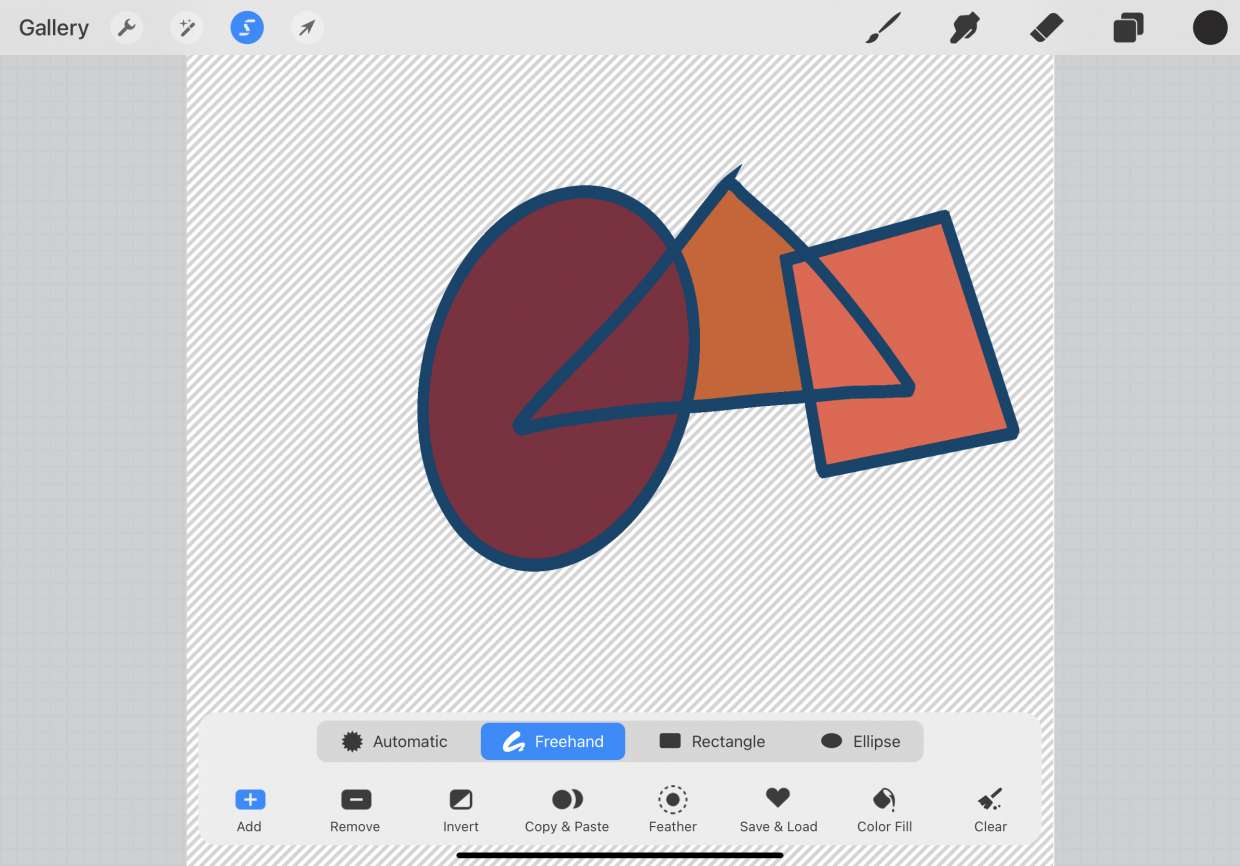
ColorDrop fills until it detects an outline, so it works best on closed shapes. If your shape has a gap or is not fully enclosed, the fill will leak out. For large areas, ColorDrop is actually faster than using a brush, which can take time and may not fill the area completely. If the fill still behaves unexpectedly, adjust the threshold using the blue bar method described above.
Frequently Asked Questions
Is there a bucket tool in Procreate?
No. Procreate’s official help refers to ColorDrop as a feature that works “like a bucket tool,” but there is no separate tool named “Bucket Tool” in the app.
Does ColorDrop work on Android?
ColorDrop is currently a feature of Procreate for iPad only.
Can ColorDrop make gradients?
No. ColorDrop is designed for solid color fills only.
What if the fill leaks outside my shape?
If the fill leaks, your shape likely has an opening. First, check that the outline is closed. Then adjust the ColorDrop threshold by holding after you drag the color, waiting for the blue bar, and dragging left to tighten the fill area.
Can I adjust the fill opacity with the Bucket tool?
Yes, you can adjust the fill opacity using an Opacity slider in the Bucket tool settings.
Are there different fill modes available with the Bucket tool?
Yes, the Bucket tool includes several fill modes: Normal, Color, Behind, Clear, and Threshold.
For the wider topic, see Procreate tools, layers and file management.
Related reading: How To Use 3D Models In Procreate and How To Use Eyedropper In Procreate.